

Accessing a different device on your home or small business network can help with many tasks. Home network computer access can support troubleshooting, file sharing, and collaboration. With the right tools, you can access another computer remotely.
Remote control lets you operate a device, while file sharing only opens shared files. Some tools control the full screen, transfer files, or create secure command-line sessions. We cover Windows Remote Desktop, macOS Screen Sharing, TeamViewer, AnyDesk, Chrome Remote Desktop, network drives, and SSH.
Remote access depends on network connectivity, user permissions, device settings, and firewall configurations. This guide focuses on Windows 10, Windows 11, macOS, Linux, and mobile devices. Find practical answers about how to log into another computer on my network and remote computer access here.
Key Takeaways
- Utilize built-in tools for remote access on Windows and macOS.
- Third-party applications like TeamViewer and AnyDesk offer user-friendly options.
- Understanding network settings is vital for successful connections.
- Different methods serve different purposes, from file sharing to full control.
- Ensure proper permissions and firewall settings for seamless access.
Understanding Network Access Fundamentals
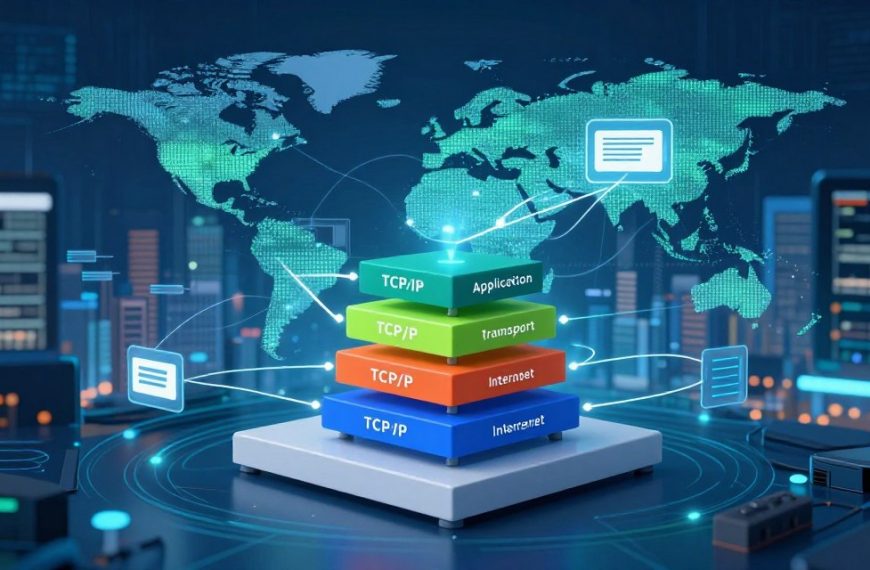
To access another computer, you need basic networking knowledge. This foundation supports successful remote network access. We will explain remote access, common uses, and network protocols that support connections.
What Is Remote Network Access?
Remote network access lets you use another device through a local area network (LAN) or approved external connection. LAN access may include several levels, such as:
- Full graphical control: Users can interact with the desktop environment of the remote computer.
- File and printer sharing: Users can access files and printers connected to the remote machine.
- Terminal-based access: Users can execute commands on the remote device without a graphical interface.
Common Scenarios for Accessing Another Computer
Remote network access helps in many situations:
- Helping a family member troubleshoot a computer issue.
- Managing an office workstation from a remote location.
- Retrieving important files from a home computer while at work.
- Administering a media server for streaming services.
- Accessing a development machine for software testing and deployment.
Network Protocols You Should Know
Several technologies support remote network access. These network protocols include:
| Protocol | Description | Use Case |
|---|---|---|
| Remote Desktop Protocol (RDP) | A Microsoft protocol that allows users to connect to Windows machines remotely. | Remote desktop connections on Windows systems. |
| Virtual Network Computing (VNC) | A platform-independent graphical desktop sharing system. | Cross-platform remote access. |
| Server Message Block (SMB) | A network file sharing protocol allowing applications to read and write to files. | File and printer sharing in Windows environments. |
| Secure Shell (SSH) | A protocol for secure remote command-line access. | Remote server management on Linux. |
| Apple Screen Sharing | A built-in macOS feature for remote desktop access. | Accessing other Macs within a network. |
Access only computers you own or may use with explicit permission. These basics prepare you for a successful remote desktop connection.
Preparing Your Computers for Remote Access
Prepare both computers before using remote access. These steps help the devices communicate and support reliable network connectivity.
Verifying Network Connectivity
First, check that both the host computer and the client computer are on and use the same network. Check Wi-Fi or Ethernet status on both devices. Then, use these methods to confirm network connectivity:
- Check the Wi-Fi icon on your device for connection status.
- For Ethernet connections, ensure the cable is securely plugged in.
- Use the command prompt to ping the host computer’s IP address.
Setting Up User Accounts and Permissions
Create separate user accounts to improve security. Do not share administrator credentials; give each account a strong password. This improves security and helps manage computer permissions. Ensure that:
- Each user has a unique login.
- Permissions for remote login, file access, and screen sharing are properly configured.
- Access is granted only to authorized users.
Ensuring Both Devices Are on the Same Network
During initial setup, connect both computers to the same Wi-Fi network or local network. This connection helps establish remote access. Remember that:
- Devices should be connected to the same router.
- VPNs, guest networks, and sleep settings can hinder connectivity.
- Network isolation may also prevent successful connections.
| Step | Action | Tools Needed |
|---|---|---|
| 1 | Check device power | None |
| 2 | Verify network connection | Wi-Fi or Ethernet |
| 3 | Ping host computer | Command prompt |
| 4 | Set up user accounts | Computer settings |
| 5 | Check permissions | Computer settings |
How to Log Into Another Computer on My Network Using Windows Remote Desktop
Learn how to log into another computer on my network with Windows Remote Desktop. It helps with remote support and access to files or apps on another machine. First, configure the host computer to allow remote access.
Enabling Remote Desktop on Windows 10 and 11
You must enable Remote Desktop on the computer you want to access. Windows 10 remote access and Windows 11 remote access depend on your Windows edition.
- Open the Settings app by pressing Windows + I.
- Navigate to System and then select Remote Desktop.
- Toggle the switch to enable Enable Remote Desktop.
- Ensure that Network Level Authentication is enabled for added security.
- Take note of the device name displayed, as you will need it later.
Connecting from a Windows Client Computer
After enabling Remote Desktop, connect from another Windows device. Use these steps:
- Open the Remote Desktop Connection client by searching for it in the Start menu.
- Enter the device name or IP address of the host computer.
- Click Connect and enter the credentials of an authorized user account on the host machine.
- Before finalizing the connection, you can adjust settings for display, audio, printer, and clipboard sharing as needed.
Connecting from a macOS or Mobile Device
A macOS or mobile device can access your Windows computer through the Microsoft Remote Desktop client. You can get it from the App Store or Google Play Store. Use these steps:
- Download and install the Microsoft Remote Desktop app.
- Open the app and click on Add PC.
- Input the device name or IP address of the Windows computer.
- Authenticate using your credentials, and tap Connect.
For safer Remote Desktop Protocol use, avoid exposing Remote Desktop directly to the public internet. Use a trusted VPN or secure remote-access service instead.
The host computer must stay awake, and your account must have permission to connect. Also, confirm that the Windows firewall allows Remote Desktop connections.
For more tips on managing your PC and improving remote access, visit this link.
Accessing Another Computer via macOS Screen Sharing
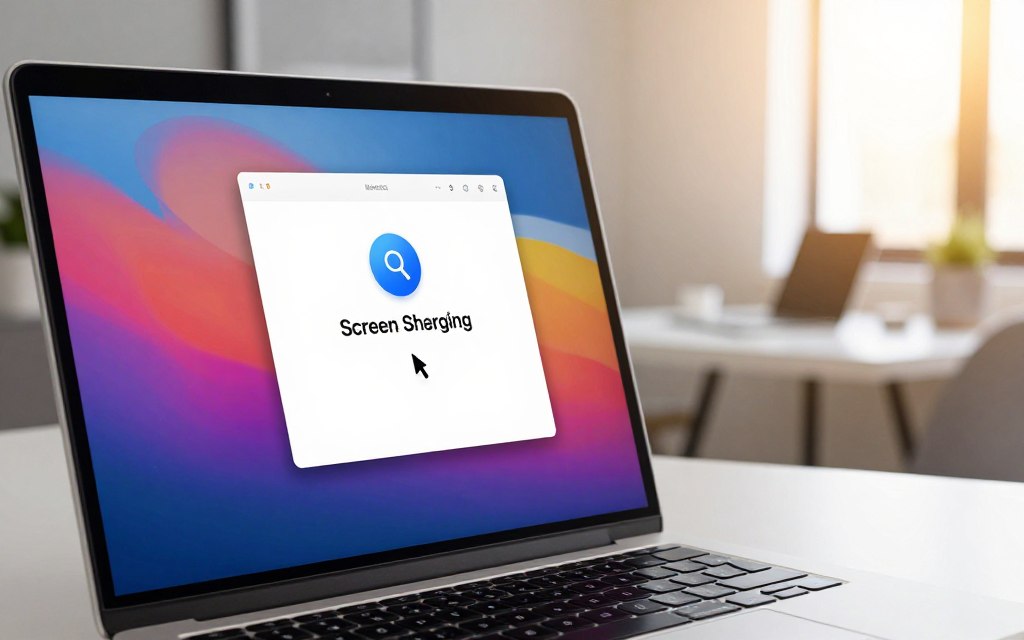
For macOS users, built-in macOS Screen Sharing makes access to another computer on the same network simple. It lets you control another Mac remotely for troubleshooting or teamwork. This guide explains how to enable it, connect from another Mac, and access a Mac from Windows.
Enabling Screen Sharing on macOS
To use macOS Screen Sharing, enable it first on the Mac you want to access. Follow these steps:
- Open System Preferences.
- Select Sharing.
- Check the box next to Screen Sharing.
After you enable it, choose which users can access your Mac. You can allow everyone or select specific accounts. Selecting specific users improves security.
Connecting from Another Mac
Connecting to another Mac is easy. Follow these steps:
- Open a new Finder window.
- In the sidebar, click on Network to find the Mac you want to access.
- Double-click on the Mac’s name and click Share Screen.
You must sign in with an approved account to gain access. This method provides full remote control, letting you use the desktop as if you were sitting in front of it.
Connecting from a Windows PC
To access a Mac from Windows, you need a compatible VNC client. Popular options include TightVNC and RealVNC. Here’s how to connect:
- Install a VNC client on your Windows PC.
- Launch the client and enter the Mac’s IP address or hostname.
- Authenticate using the credentials of an authorized user.
A VNC connection lets you view the Mac’s screen, but control levels may differ by client. Keep both devices on a trusted network to help maintain security.
In summary, macOS Screen Sharing is a powerful tool for Mac remote access. Whether you connect from another Mac or a Windows PC, the process is user-friendly. If you manage multiple Macs, consider using Apple Remote Desktop for broader administration and monitoring features.
Using Third-Party Remote Access Software
Third-party tools simplify remote access across many platforms. They offer flexible ways to reach computers for support or teamwork. This guide covers TeamViewer remote access, AnyDesk, and Chrome Remote Desktop.
Setting Up TeamViewer for Cross-Platform Access
TeamViewer is popular remote support software for many operating systems. Use these steps to set up cross-platform computer access:
Installing TeamViewer on the Host Computer
- Download TeamViewer from the official website.
- Run the installer and follow the on-screen instructions.
- Record the device ID and password for future connections.
Connecting from the Client Device
To connect to the host computer:
- Open TeamViewer on the client device.
- Enter the device ID and password.
- Select whether to initiate a one-time support session or set up unattended access for future use.
Configuring AnyDesk for Quick Remote Sessions
AnyDesk remote desktop is an efficient tool for quick sessions. Follow these steps to configure it:
Installing AnyDesk on Both Devices
- Download AnyDesk from the official site.
- Install it on both the host and client devices.
Establishing a Remote Connection
To establish a connection:
- Open AnyDesk on the host and note the AnyDesk address.
- Enter this address on the client device.
- Accept the connection request on the host device.
Using Chrome Remote Desktop from Any Browser
Chrome Remote Desktop works through the Chrome browser. Follow these steps to set it up:
Setting Up Chrome Remote Desktop
- Install the Chrome Remote Desktop extension from the Chrome Web Store.
- Follow the prompts to set up remote access, including creating a device name and PIN.
Accessing Your Computer Remotely
To access your computer remotely:
- Open Chrome Remote Desktop on any supported browser.
- Log in with your Google account.
- Select your computer and enter the PIN to connect.
When choosing remote access software, consider ease of use, system compatibility, and security features. For more insights on the best remote access software, read this guide.
| Software | Platform Compatibility | Key Features | Security Options |
|---|---|---|---|
| TeamViewer | Windows, macOS, Linux, iOS, Android | Unattended access, file transfer | Two-factor authentication |
| AnyDesk | Windows, macOS, Linux, iOS, Android | Low latency, customizable settings | Encryption, access control |
| Chrome Remote Desktop | Any device with Chrome | Easy setup, free to use | Google account security |
Download software from official sources, review unattended access settings, and use strong credentials. These steps help secure your remote sessions.
Sharing Files and Folders Across Your Network
Network file sharing improves teamwork and efficiency. At home or work, you can use Windows file sharing and macOS file sharing. This guide explains sharing, permissions, and a mapped network drive for quick access.
Setting Up File Sharing on Windows
To start Windows file sharing, enable network discovery and file sharing. Use these steps:
- Open the Control Panel and navigate to Network and Sharing Center.
- Select Change advanced sharing settings.
- Turn on Network discovery and File and printer sharing.
Next, share a specific folder as follows:
- Right-click on the folder you want to share and select Properties.
- Go to the Sharing tab and click on Share.
- Choose specific users or groups and assign read or read/write permissions.
SMB file sharing works well with macOS. Avoid sharing entire drives or sensitive system folders.
Setting Up File Sharing on macOS
For macOS file sharing, follow these steps:
- Open System Preferences and click on Sharing.
- Check the box next to File Sharing.
- Add the folders you want to share by clicking the + button.
Select users and choose their access levels. This limits access to authorized users of the shared network folders.
Mapping Network Drives for Quick Access
A mapped network drive gives quick access to shared folders. On Windows, follow these steps:
- Open File Explorer and click on This PC.
- Select Map network drive from the ribbon.
- Enter the network path or server address of the shared folder.
- Check Reconnect at sign-in for easy future access.
On macOS, connect to a server with these steps:
- Opening Finder and selecting Go > Connect to Server.
- Input the server address and click Connect.
- You can save this location for easy access in the future.
Consider password-protected sharing for better security. Give users only the permissions they need to reduce risks from guest access.
Accessing Computers via SSH and Command Line
SSH, or Secure Shell, provides secure SSH remote access through command-line access. This lightweight protocol helps administrators manage systems without a graphical interface. This section explains how to enable SSH on operating systems and connect to remote devices.
Enabling SSH on Windows 10 and 11
To use SSH on Windows 10 and 11, enable the Windows OpenSSH Server feature. Follow these steps:
- Open Settings and navigate to Apps.
- Click on Optional features and then Add a feature.
- Search for OpenSSH Server and install it.
After installation, start the service by running this command in PowerShell:
Start-Service sshd
To start the service automatically with Windows, use:
Set-Service -Name sshd -StartupType 'Automatic'
Enabling SSH on macOS and Linux
For macOS SSH, SSH is usually enabled by default. To check or enable it, open System Preferences, choose Sharing, and select Remote Login. For Linux remote login, install the OpenSSH server package, usually with:
sudo apt install openssh-server
After installation, start the SSH service with:
sudo systemctl start ssh
Connecting via SSH from Another Device
To connect to a remote computer through SSH, use this command format:
ssh username@hostname_or_IP
Replace username with your account name and hostname_or_IP with the target computer’s address. During your first connection, verify the host key to help ensure a secure connection.
SSH supports password authentication and key-based authentication, which is generally more secure. Common command-line tasks include checking system status, managing files, and transferring data securely. For security, disable unnecessary exposure, restrict users, and avoid direct port 22 exposure without safeguards.
Security Best Practices for Network Access
Strong remote access security practices help protect sensitive information during remote network access. Use the key steps below to keep each connection safer.
Using Strong Passwords and Two-Factor Authentication
Strong passwords are your first defense against unauthorized access. Make each password long, unique, and complex. Avoid birthdays and common words, and use a password manager to create and store passwords securely.
Along with strong passwords, enable two-factor authentication (2FA) on remote-access platforms and cloud accounts. It adds another security layer and makes unauthorized access much harder, even if attackers get your password.
Keeping Software Updated
Regularly update your operating system, router firmware, remote-access software, and antivirus programs. Updates often include security patches that fix vulnerabilities. Current software lowers the risk of cybercriminal exploitation.
Configuring Firewalls Properly
A proper firewall configuration is vital for secure network access; allow only needed services and trusted network profiles. Block unused ports to reduce entry points for attackers. Do not disable the firewall as a troubleshooting shortcut, because this exposes your network to needless risks.
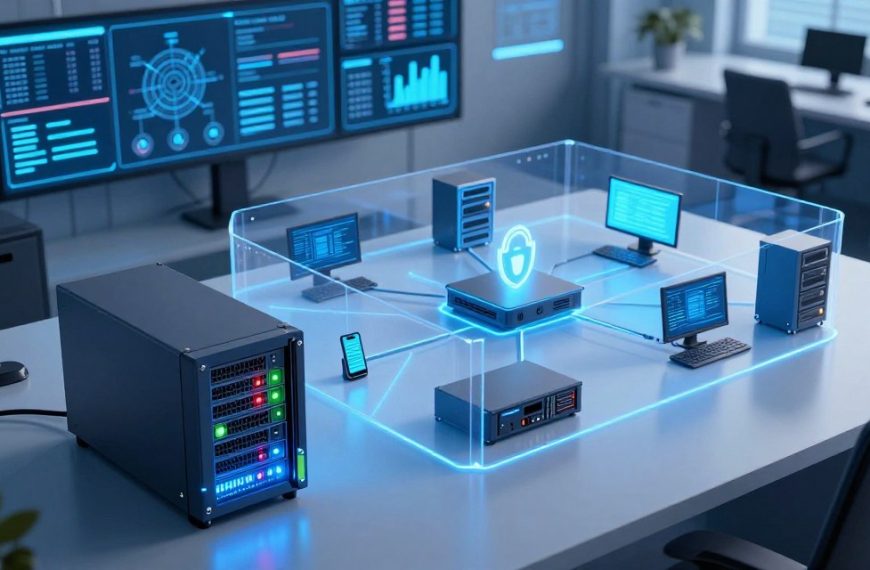
When possible, place work, personal, guest, and smart-home devices on separate networks. This segmentation can contain breaches and protect sensitive data.
Regularly audit active users and review connection logs. Remove old accounts no longer in use, and lock the host computer when unattended. A VPN adds security for remote connections across public networks.
Always get authorization before accessing another person’s device. This respects privacy and supports compliance with legal standards.
Troubleshooting Common Network Access Problems
When network access problems arise, effective remote access troubleshooting can save time and reduce frustration. These steps cover common issues that may stop you from connecting to another computer on your network. Follow them to identify and fix the problem quickly.
Resolving IP Address Conflicts
An IP address conflict can cause intermittent connections or duplicate-address warnings. Symptoms include being unable to connect to a device or seeing erratic network performance. Start by renewing the network address.
Restart your router and the affected devices. If problems continue, check for static IP assignments that conflict with dynamic addresses.
Fixing Permission Denied Errors
A permission denied network error can occur when you access shared resources. Use the correct account name and password. Verify remote-login rights and shared-folder permissions.
A blocked or disabled account can also cause access issues. Check these settings carefully to prevent frustration.
Dealing with Firewall Blocks
A firewall blocking connection can prevent access to another computer. Check that the needed application or service is allowed on the correct network profile. Do not disable the entire firewall because this creates security risks.
Instead, configure specific rules to permit the necessary connections.
Other causes include a sleeping host, unsupported Windows edition, disabled services, or VPN interference. Changed IP addresses or adjusted port settings may also cause problems. Change one setting at a time, then test locally before trying access over the internet.
Tips for Optimizing Your Remote Access Experience
You can improve productivity by improving your remote access experience. These steps make remote sessions faster, more responsive, and easier to use.
Improving Connection Speed and Stability
Use these tips to maintain a stable remote connection:
- Use a wired Ethernet connection for stationary computers whenever possible. This can greatly reduce latency and improve speed.
- Place devices near a strong wireless access point to ensure better signal strength.
- Avoid bandwidth-heavy activities during remote sessions, such as streaming videos or large downloads.
- Choose a less congested Wi-Fi band (2.4 GHz vs. 5 GHz) to minimize interference.
Network latency, upload speed, and packet loss can limit efforts to improve remote desktop performance. A VPN can also cause delays, so optimize its settings for speed.
Customizing Display and Audio Settings
Adjusting your remote display settings and audio settings can create a smoother experience. Try these options:
- Lower the screen resolution and reduce color depth to enhance performance.
- Disable desktop backgrounds and animations to minimize resource usage.
- Limit unnecessary visual effects in your operating system settings.
Consider disabling remote audio, microphone redirection, printer redirection, or clipboard synchronization when unnecessary. This can save bandwidth and improve privacy.
Save frequently accessed devices with clear names. Use static DHCP reservations or dependable hostnames where appropriate. Configure host computer sleep settings carefully to prevent remote session disconnections.
“Optimizing your remote access setup is essential for a seamless user experience.”
Keep your authentication, firewall, and encryption protections strong while making these adjustments.
| Tip | Benefit | Notes |
|---|---|---|
| Use Wired Ethernet | Reduces latency | Best for stationary setups |
| Optimize Wi-Fi Band | Improves speed | Less interference |
| Lower Display Settings | Enhances performance | Less resource-intensive |
Conclusion
This remote computer access guide covers ways to access computers on a network, with options for different needs. Windows Remote Desktop supports Windows-to-Windows graphical access, while macOS Screen Sharing suits Mac-focused environments. TeamViewer and AnyDesk support cross-platform sessions, while SSH enables secure command-line administration.
Before any remote connection, follow a preparation checklist. Check network connectivity, identify the host computer, and create or confirm an authorized account. Enable needed services, configure firewall settings, and test the connection locally for a smooth experience.
Secure remote login is vital for safe access. Use strong passwords, keep software updated, and limit user permissions. Watch how your network faces the internet, and use authorized access methods for desktop control, file sharing, or command-line tasks.
By understanding these network access methods, you can improve productivity and maintain security. Choose the solution that fits your needs, and enjoy efficient remote access.


 By
By