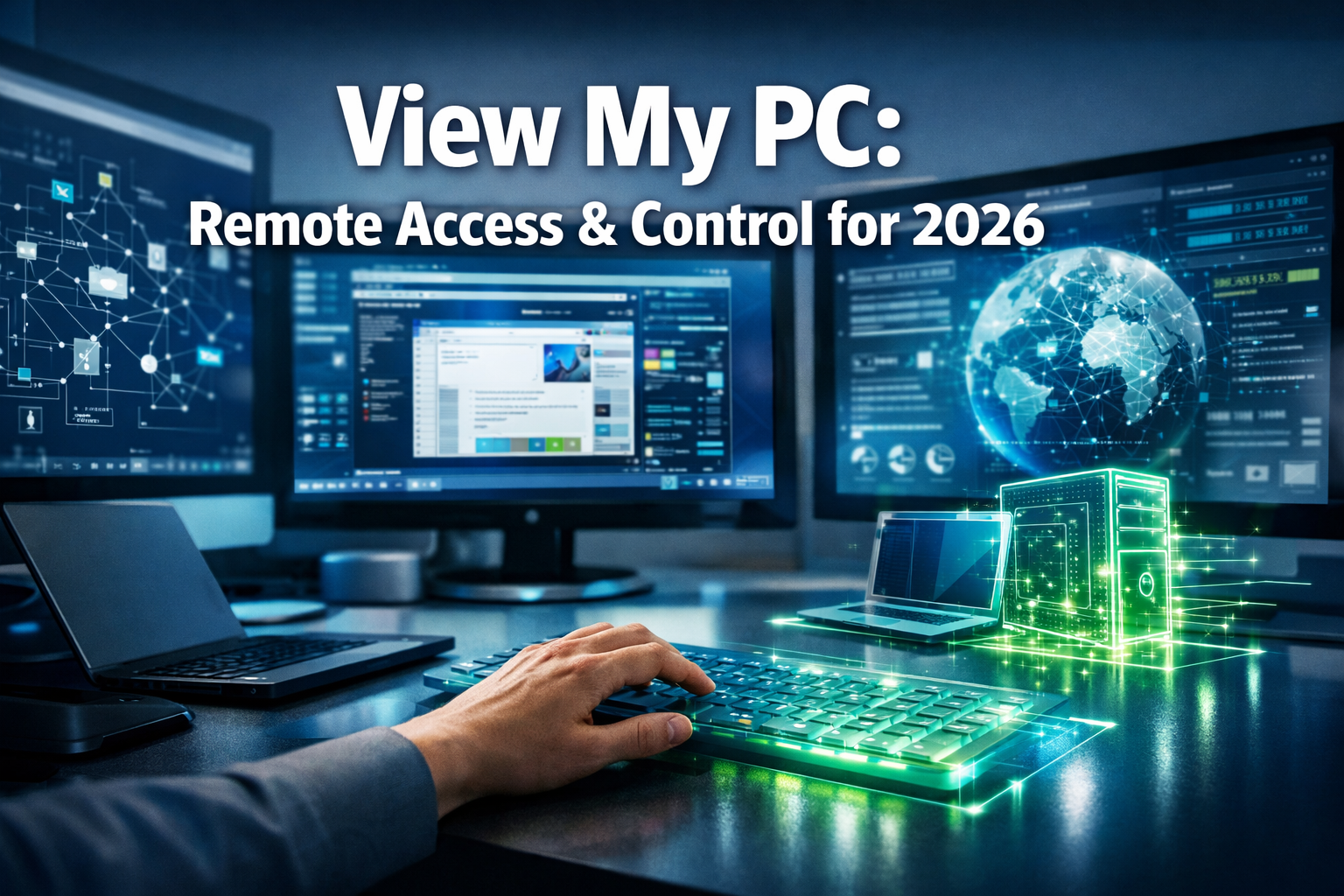

In the increasingly interconnected world of 2026, the ability to “view my PC” from virtually anywhere has transformed how individuals work, play, and collaborate. Gone are the days when physical presence was a prerequisite for accessing your files, applications, or even providing tech support. Remote PC viewing solutions empower users to bridge geographical gaps, offering unparalleled flexibility and control over their digital lives. Whether you’re a professional needing to access critical documents from home, a gamer wanting to stream your high-end rig to a laptop, or someone providing remote assistance to a family member, understanding the nuances of remote computer access is more crucial than ever.
This comprehensive guide delves into everything you need to know about remotely viewing and controlling your PC. From the underlying technologies to the best software options available in 2026, and vital security considerations, this article provides a professional, authoritative resource for optimizing your remote computing experience.
Key Takeaways
- Remote PC access is essential for modern productivity: The ability to “view my PC” from any location is critical for remote work, technical support, and personal convenience in 2026.
- Various technologies power remote viewing: Solutions like Remote Desktop Protocol (RDP), Virtual Network Computing (VNC), and proprietary cloud-based services enable seamless connections.
- Security is paramount: Implementing strong passwords, multi-factor authentication, and keeping software updated are crucial to protect against unauthorized access.
- Diverse software options exist: Popular choices include TeamViewer, AnyDesk, Chrome Remote Desktop, and built-in OS features, each with unique strengths.
- Optimizing performance is key: Factors like internet speed, hardware, and connection settings significantly impact the quality of your remote viewing experience.
Understanding the Fundamentals of Remote PC Access
Remote PC access, often referred to as remote desktop or remote control, allows a user to connect to a computer from a different device, over a network (typically the internet), and interact with its desktop environment as if they were sitting directly in front of it. This means you can see the remote computer’s screen, use its keyboard and mouse, and access all its files and applications. The core concept behind “view my PC” remotely revolves around client-server architecture, where a “host” or “server” application runs on the PC you want to access, and a “client” application runs on the device you’re using to connect.
How Remote Access Works: A Technical Overview
At its heart, remote access relies on networking protocols that transmit screen data and input commands efficiently. When you move your mouse or type on your keyboard on the client device, these actions are sent over the network to the host PC. The host PC processes these commands, updates its display, and then sends the updated screen information back to your client device. This rapid exchange creates the illusion of direct interaction.
Key components and protocols involved include:
- Host Software: This application runs on the PC you wish to control. It captures the screen, handles incoming commands, and sends data back to the client.
- Client Software: This application runs on the device you are using to initiate the remote connection. It displays the remote screen and sends your input.
- Network Protocols: These are the rules governing data transmission. Common ones include:
- Remote Desktop Protocol (RDP): Developed by Microsoft, RDP is built into Windows and provides a rich graphical interface over a network connection. It’s often favored for its performance and native integration [1].
- Virtual Network Computing (VNC): An open-source graphical desktop sharing system that uses the RFB (Remote FrameBuffer) protocol. VNC is cross-platform, meaning you can connect from almost any operating system to another.
- Proprietary Protocols: Many commercial remote access solutions, like TeamViewer and AnyDesk, use their own highly optimized protocols designed for speed, security, and ease of use, often employing cloud infrastructure for connection brokering.
Common Scenarios for “View My PC”
The utility of remote PC viewing spans numerous applications across personal and professional domains:
- Remote Work and Collaboration: Accessing your office PC from home, collaborating on projects, or sharing screens for presentations. This has become a cornerstone of modern hybrid work models.
- IT Support and Troubleshooting: Technicians can remotely diagnose and fix computer issues without needing to be physically present. This capability significantly reduces downtime and travel costs.
- Personal File Access: Retrieving documents, photos, or other files stored on your home PC while you’re on the go.
- Gaming: Streaming high-performance games from a powerful desktop PC to a less powerful laptop or mobile device, allowing gaming from anywhere with a good internet connection.
- Server Management: Managing remote servers or headless systems (computers without a monitor, keyboard, or mouse) efficiently.
- Education and Training: Delivering remote lectures, demonstrations, and assisting students with software issues.
“The flexibility offered by remote PC access in 2026 is not just a convenience; it’s a fundamental shift in how we interact with technology and conduct business.”
Top Remote PC Viewing Solutions in 2026
The market for remote PC viewing software is robust, offering a range of options from simple, free tools to advanced, enterprise-grade solutions. Choosing the right one depends on your specific needs, technical expertise, and budget.
Built-in Operating System Features
Many operating systems offer native tools for remote access, which can be a convenient starting point.
1. Windows Remote Desktop (RDP)
Windows Remote Desktop is a powerful feature built into professional and enterprise editions of Windows. It allows users to connect to another Windows PC and access its desktop.
Pros:
- Native Integration: Seamlessly integrated with Windows, requiring no additional software installation on the host.
- Performance: Generally offers excellent performance, especially over a local network.
- Security: Utilizes robust encryption protocols.
Cons:
- Windows Pro/Enterprise Requirement: The host PC must be running a Pro or Enterprise version of Windows. Home editions cannot act as RDP hosts.
- Network Configuration: Requires proper network configuration (port forwarding, VPN) for external access, which can be complex for novice users.
- Single Session: By default, only one user can be logged in via RDP at a time. If someone logs in remotely, the local session is locked [2].
To set up RDP, you typically need to enable it in System Settings and ensure your network allows the connection. For more advanced users, understanding how to compute the point system in volleyball scoring rules for example, is not related to RDP, but managing network configurations can feel similarly complex for some.
2. macOS Screen Sharing
macOS includes a Screen Sharing feature, which is essentially an Apple-branded version of VNC.
Pros:
- Native Integration: Built into macOS, easy to enable.
- Simplicity: Straightforward setup within System Preferences.
- Cross-Platform: Can be accessed by other VNC clients.
Cons:
- Performance: May not be as performant as RDP or dedicated commercial solutions over the internet.
- Limited Features: Lacks some advanced features found in third-party tools.
Third-Party Remote Access Software
For more robust features, cross-platform compatibility, and easier setup, third-party solutions are often preferred.
1. TeamViewer
TeamViewer is one of the most widely recognized and feature-rich remote access tools available. It’s popular for both personal and business use.
Key Features:
- Cross-Platform: Supports Windows, macOS, Linux, Android, iOS, and even web browsers.
- Easy Setup: No complex network configuration needed; connects via unique IDs and passwords.
- Extensive Functionality: File transfer, chat, video calls, session recording, multi-monitor support, wake-on-LAN.
- Security: End-to-end encryption, multi-factor authentication.
Use Cases:
- IT support for clients or family.
- Remote work and collaboration.
- Personal access to “view my PC” from mobile devices.
2. AnyDesk
AnyDesk is known for its high performance and low latency, making it a favorite among power users and those requiring fluid remote interactions.
Key Features:
- Speed: Designed for extremely fast frame rates and minimal latency, even on lower bandwidth connections.
- Lightweight: Small file size and low resource consumption.
- Security: TLS 1.2 encryption and two-factor authentication.
- Customization: Highly customizable for enterprise environments.
Use Cases:
- Graphic designers or video editors working remotely.
- Technical support requiring quick and responsive control.
- Users with less robust internet connections.
3. Chrome Remote Desktop
A free, web-based solution from Google that offers basic remote access capabilities through the Chrome browser.
Key Features:
- Free: Completely free for personal use.
- Easy to Use: Simple setup via a Chrome extension.
- Cross-Platform: Access from any device with a Chrome browser.
Limitations:
- Browser-Dependent: Requires Chrome to be installed on both host and client.
- Basic Features: Lacks advanced features like session recording or detailed reporting.
4. VNC Connect (RealVNC)
While VNC is a protocol, RealVNC’s VNC Connect is a popular commercial implementation that provides a secure, reliable, and feature-rich remote access experience.
Key Features:
- Cross-Platform: Excellent compatibility across various operating systems.
- Security: Strong encryption, multi-factor authentication.
- Cloud Connectivity: Facilitates connections without complex router configuration.
Use Cases:
- Users who prefer the VNC protocol with added commercial support and features.
- Managing mixed OS environments.
Other Notable Mentions
- LogMeIn: A robust, enterprise-focused solution with comprehensive features, though often pricier.
- Splashtop: Offers high-performance streaming, popular for media consumption and gaming.
- RustDesk: An open-source alternative to TeamViewer and AnyDesk, allowing self-hosting for enhanced privacy.
Securing Your Remote PC Connection
While the convenience of being able to “view my PC” from anywhere is immense, it introduces significant security risks if not properly managed. Unauthorized access to your computer can lead to data breaches, identity theft, and system compromise.
Best Practices for Secure Remote Access
Implementing robust security measures is non-negotiable for any remote connection.
1. Use Strong, Unique Passwords
This is the foundational step. Ensure your remote access software uses strong, complex passwords that are unique to the service. Avoid common phrases, personal information, and reusing passwords across multiple accounts. Consider using a password manager.
2. Enable Multi-Factor Authentication (MFA)
MFA adds an extra layer of security by requiring a second form of verification (e.g., a code from your phone, a biometric scan) in addition to your password. Most reputable remote access solutions offer MFA, and it should always be enabled.
3. Keep Software Updated
Regularly update your operating system, remote access software, and antivirus programs. Updates often include critical security patches that fix vulnerabilities exploited by attackers. For maintaining a secure system, knowing how to do a system restore on your computer step-by-step guide can be useful in case of an issue, but proactive updates prevent many problems.
4. Use a VPN (Virtual Private Network)
When accessing your PC over an untrusted public Wi-Fi network, a VPN encrypts your entire internet connection, safeguarding your data from potential eavesdropping. For businesses, a VPN is often integrated with remote access for an added layer of security.
5. Restrict Access and Permissions
- Limit User Accounts: Only grant remote access to necessary user accounts.
- Principle of Least Privilege: Ensure remote users only have the minimum permissions required to perform their tasks.
- Whitelist IPs: If possible, configure your router or remote access software to only accept connections from known IP addresses.
6. Firewall Configuration
Ensure your firewall is properly configured to block unauthorized incoming connections while allowing legitimate remote access traffic.
7. Be Wary of Phishing and Social Engineering
Attackers often try to trick users into granting them remote access through deceptive emails or phone calls. Always verify the identity of anyone requesting remote access to your system. Never click suspicious links or download unsolicited software.
Data Encryption: The Backbone of Secure Remote Viewing
Most modern remote access solutions employ robust encryption standards, typically AES (Advanced Encryption Standard) 256-bit, to protect data in transit. This means that even if an attacker intercepts the data flowing between your client and host PC, it would be unreadable without the encryption key. Always confirm that the remote access solution you choose utilizes strong, industry-standard encryption.
Setting Up Your PC for Remote Viewing: A Step-by-Step Guide
Getting your PC ready for remote access involves a few key steps. While the specifics vary by software, the general process remains consistent.
Step 1: Prepare the Host PC (The Computer You Want to View)
- Choose Your Software: Decide which remote access solution you will use (e.g., TeamViewer, AnyDesk, Windows RDP).
- Install Host Software: Download and install the host application on the PC you wish to control.
- Enable Remote Access:
- For Windows RDP: Go to
Settings > System > Remote Desktopand toggle itOn. Note the PC name. - For Third-Party Software: Follow the on-screen instructions to set up an unattended access password or generate a session ID.
- For Windows RDP: Go to
- Configure Power Settings: Prevent the host PC from going to sleep or hibernating, which would disconnect your remote session. Go to
Settings > System > Power & Sleepand adjust sleep settings to “Never” or a long duration when plugged in. - Set a Strong Password: Ensure the user account on the host PC has a strong password, especially if using RDP.
Step 2: Configure Your Network (If Needed)
For solutions like Windows RDP, or if you’re self-hosting a VNC server, you might need to configure your router.
- Find Host PC’s IP Address: On the host PC, open Command Prompt and type
ipconfig. Note down the “IPv4 Address.” - Port Forwarding (Caution Advised): If you need to access the PC from outside your local network without a VPN or cloud-brokered solution, you’ll need to configure port forwarding on your router. This directs incoming traffic on a specific port (e.g., 3389 for RDP) to your host PC’s internal IP address. This can expose your PC to the internet and is generally NOT recommended without a VPN. Cloud-based services or VPNs are safer alternatives.
- Dynamic DNS (Optional): If your internet service provider assigns you a dynamic IP address (which changes periodically), a Dynamic DNS (DDNS) service can help you always reach your PC using a hostname instead of an IP address.
Step 3: Connect from the Client Device (The Device You’re Using)
- Install Client Software: On your laptop, tablet, or smartphone, install the corresponding client application (e.g., TeamViewer client, AnyDesk app, Microsoft Remote Desktop app).
- Enter Connection Details:
- For Windows RDP: Enter the host PC’s IP address or hostname.
- For Third-Party Software: Enter the host PC’s unique ID and password.
- Initiate Connection: Click “Connect” or similar. You might be prompted for credentials.
- Start Viewing and Controlling: Once connected, you will see the host PC’s desktop and can interact with it.
For detailed steps on system configurations, understanding what operating system do I have on my computer how to check can be a useful preliminary step before setting up RDP or other OS-specific remote features. Also, for fresh setups, consider guides like how to get an operating system on a new computer installation guide.
Optimizing Performance for Remote PC Viewing
A smooth and responsive remote experience is crucial. Several factors can impact performance when you “view my PC” remotely.
Internet Connection Speed and Latency
- Bandwidth: Both upload speed on the host PC and download speed on the client device are critical. High-resolution screens and intensive applications require more bandwidth.
- Latency (Ping): The time it takes for data to travel between your client and host. High latency (e.g., over satellite internet) will result in noticeable delays and a sluggish experience. Opt for the lowest latency connection possible.
Hardware of the Host PC
- CPU and RAM: A faster processor and more RAM on the host PC will allow it to handle screen rendering, input processing, and application execution more efficiently, leading to a smoother remote experience.
- Graphics Card: While not always the primary factor, a decent graphics card can improve screen capture and encoding, especially for graphically intensive tasks or video streaming.
Connection Settings and Software Optimization
Most remote access software offers settings to optimize performance:
- Display Quality: Reduce color depth, resolution, or disable visual effects (e.g., desktop wallpaper, animations) on the remote desktop. This significantly reduces the amount of data transmitted.
- Compression: Enable data compression features within your remote access software.
- Bandwidth Prioritization: Some software allows you to prioritize remote desktop traffic over other network activities.
- Disable Unnecessary Features: Turn off file transfer, printing, or audio streaming if not needed during a session to save bandwidth.
Local Network Considerations
If you’re accessing your PC over a local area network (LAN), performance is typically excellent. However, ensure:
- Wired Connections: Use Ethernet cables for both host and client if possible, as wired connections are faster and more stable than Wi-Fi.
- Wi-Fi Quality: If using Wi-Fi, ensure strong signal strength and minimal interference.
Troubleshooting Common Remote PC Access Issues
Even with the best setup, you might encounter issues when trying to “view my PC.” Here are some common problems and their solutions.
1. “Can’t Connect to Remote PC”
- Check Host PC Power: Is the host PC turned on and not asleep or hibernating?
- Internet Connection: Verify both host and client have active internet connections.
- Firewall: Is the firewall on the host PC blocking the remote connection? Temporarily disable it for testing, then re-enable and configure it correctly.
- Remote Access Enabled: Ensure remote access is enabled on the host PC (e.g., RDP enabled, TeamViewer running).
- Correct Credentials: Double-check the host ID, IP address, hostname, and password.
- Port Forwarding: If required for your setup, confirm port forwarding is correctly configured on your router.
- Software Status: Is the remote access software running on the host? Sometimes it might crash or not launch correctly.
2. “Slow and Laggy Performance”
- Internet Speed: Run a speed test on both host and client. Insufficient bandwidth is a common culprit.
- Network Congestion: Are there other bandwidth-intensive activities (streaming, large downloads) occurring on either network?
- Display Settings: Reduce resolution, color depth, and disable visual effects in your remote access software settings.
- Host PC Resources: Is the host PC’s CPU or RAM maxed out? Close unnecessary applications.
- Wi-Fi Signal: If on Wi-Fi, check signal strength and move closer to the router.
3. “Screen is Blank or Black”
- Log-in Required: The host PC might be at a login screen. Try sending a Ctrl+Alt+Del command through the remote software.
- Display Driver Issues: Sometimes, a display driver issue on the host can cause a blank screen. Ensure drivers are up to date.
- Hardware Malfunction: Less common, but a physical display issue on the host PC could result in a blank remote screen.
4. “Keyboard or Mouse Input Not Working”
- Focus: Ensure the remote desktop window is the active window on your client device.
- Software Glitch: Restart both client and host applications.
- Permissions: Verify the remote session has appropriate input control permissions.
When troubleshooting, it’s often helpful to think about the fundamental parts of a computer system that are involved in the connection, understanding what are the 4 parts of a computer system core components can help pinpoint issues.
The Future of Remote PC Viewing in 2026 and Beyond
The landscape of remote PC viewing is continually evolving, driven by advancements in network infrastructure, cloud computing, and user demand. In 2026, we can expect several key trends to shape the future of how we “view my PC.”
Enhanced Security Measures
As cyber threats become more sophisticated, remote access solutions will integrate even stronger security features:
- AI-Powered Threat Detection: Proactive detection of unusual login patterns or malicious activity.
- Zero-Trust Architecture: Verifying every user and device, regardless of whether they are inside or outside the network perimeter.
- Hardware-Level Security: Tighter integration with Trusted Platform Modules (TPMs) for enhanced data protection.
Greater Integration with Cloud and AI
- Cloud-Native Remote Desktops: Moving beyond simple remote control to full desktop-as-a-service (DaaS) solutions hosted entirely in the cloud, accessible from any device.
- AI-Assisted Remote Support: AI chatbots and virtual assistants that can diagnose simple issues or guide users through troubleshooting steps before human intervention is needed.
- Intelligent Bandwidth Management: AI algorithms optimizing stream quality based on real-time network conditions and user activity.
Immersive Experiences and Augmented Reality (AR)
While still nascent, AR could revolutionize how we interact with remote desktops. Imagine:
- Virtual Monitors: Projecting your remote PC’s screen onto multiple virtual monitors in your physical space using AR glasses.
- Holographic Interfaces: Interacting with 3D applications or data visualizations from your remote PC in an augmented reality environment.
- Seamless Device Hand-off: Moving a remote session from a desktop to a tablet to an AR headset without interruption.
Simplified Setup and User Experience
Future solutions will continue to prioritize ease of use, making it simpler for even non-technical users to set up and manage remote connections. “One-click” access and intelligent auto-configuration will become standard.
The ongoing evolution of these technologies ensures that remote PC viewing will remain a critical tool for productivity, collaboration, and personal convenience in the years to come. Understanding a computer-based information system designed to handle data is fundamental to appreciating how these advancements integrate into broader digital infrastructures.
Conclusion
The ability to “view my PC” remotely is an indispensable capability in 2026, offering unprecedented flexibility and efficiency across personal and professional spheres. From enabling seamless remote work and providing critical IT support to facilitating access to personal files and high-end gaming rigs, the applications are vast and varied.
Navigating the world of remote access requires a balanced understanding of available technologies, careful selection of the right software, and unwavering commitment to security best practices. By implementing strong passwords, multi-factor authentication, keeping software updated, and being mindful of network configurations, users can enjoy the immense benefits of remote computing without compromising their digital safety.
As technology continues to advance, we can anticipate even more intuitive, secure, and performant remote viewing solutions. Staying informed about these developments will empower you to leverage your computing resources more effectively, ensuring that your PC is always within reach, no matter where you are.
Actionable Next Steps:
- Assess Your Needs: Determine why you need to “view my PC” remotely (e.g., remote work, tech support, personal access) to guide your software choice.
- Choose a Solution: Select a remote access tool that best fits your requirements and technical comfort level. Start with built-in OS features or free tools like Chrome Remote Desktop if you’re new to it.
- Prioritize Security: Immediately enable multi-factor authentication, set strong passwords, and ensure your host PC’s operating system and remote access software are fully updated.
- Test Your Setup: Before you rely on remote access, perform a test connection from a different device and location to ensure everything works as expected.
- Optimize for Performance: Experiment with display settings and other optimizations within your chosen software to achieve the best balance of quality and responsiveness for your internet connection.
References
[1] Microsoft. (n.d.). Remote Desktop Protocol (RDP) – Understanding the Basics. Retrieved from Microsoft Documentation.
[2] Techopedia. (n.d.). Remote Desktop Protocol (RDP). Retrieved from Techopedia.
Frequently Asked Questions about Remote PC Access
Remote PC access allows a user to connect to and control a computer from a different device, over a network (typically the internet), interacting with its desktop environment as if they were physically present. This enables accessing files, applications, and providing tech support remotely.
Remote PC access can be very secure if proper measures are taken. This includes using strong, unique passwords, enabling multi-factor authentication (MFA), keeping all software updated, using a VPN on public networks, and configuring firewalls correctly. Most reputable solutions use strong encryption to protect data in transit.
Common uses for remote PC viewing include remote work and collaboration, IT support and troubleshooting, accessing personal files from anywhere, streaming games from a powerful desktop to another device, and managing remote servers efficiently. It offers flexibility and control over your digital resources.
The best remote access software depends on your needs. For basic, free access, Chrome Remote Desktop is excellent. For robust features, cross-platform support, and ease of use, TeamViewer or AnyDesk are popular. Windows Remote Desktop is powerful for Windows Pro/Enterprise users. Consider factors like cost, features, and security requirements.
To improve performance, ensure you have sufficient internet bandwidth (both upload on host and download on client), low network latency, and a powerful enough host PC. Within the remote access software, reduce display quality, color depth, and disable visual effects. Using wired connections over Wi-Fi can also significantly help.
How to Set Up Your PC for Remote Viewing
Choose your remote access software, install the host application, enable remote access in OS settings or software, configure power settings to prevent sleep, and ensure a strong password for the host PC account.
Find your host PC’s IP address. For certain solutions like Windows RDP without a VPN, you might need to configure port forwarding on your router (use with caution, VPN or cloud-based solutions are safer). Consider Dynamic DNS if your IP address changes frequently.
Install the corresponding client application on your device (laptop, tablet, or smartphone). Enter the host PC’s IP address/hostname or unique ID and password. Initiate the connection and begin interacting with your remote PC.
Key Remote PC Access Terminology
A proprietary protocol developed by Microsoft, built into Windows, that allows users to connect to and control a remote Windows computer over a network.
An open-source graphical desktop sharing system that uses the RFB protocol to allow remote control of one computer by another.
The computer that you want to access and control remotely.
The device (e.g., laptop, tablet, smartphone) you use to connect to and control the Host PC.
A security system that requires more than one method of authentication from independent categories of credentials to verify a user’s identity for a login or other transaction.
A technique that redirects communication requests from one address and port number combination to another while the packets are traversing a network gateway, often used to make a local service accessible from the internet. Use with caution due to security implications.

 By
By
 By
By
 By
By