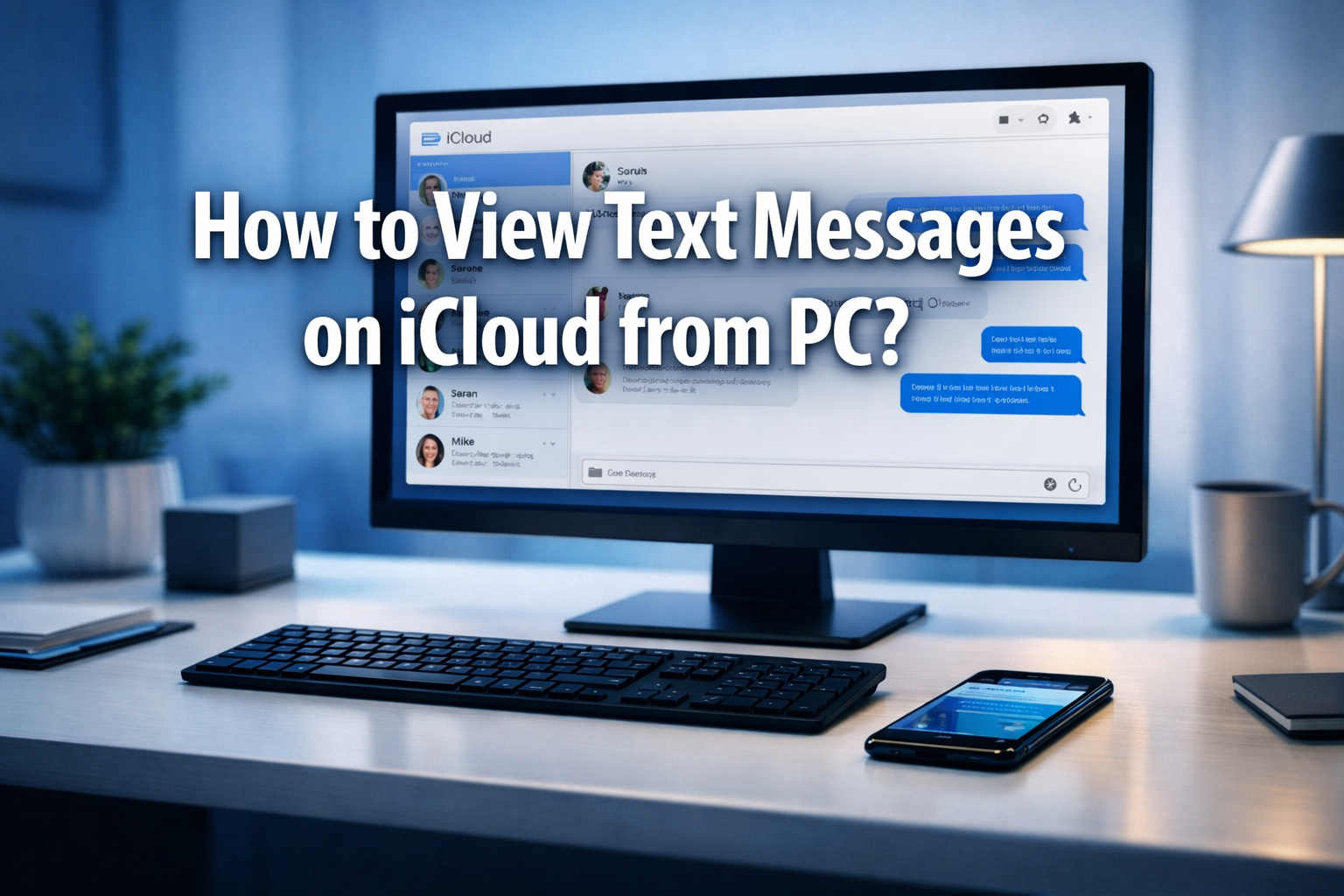

Navigating the digital landscape to manage your personal communications can sometimes feel like a complex puzzle. If you’ve ever wondered how to view text messages on iCloud from PC, you’re not alone. In 2026, with our lives increasingly intertwined with multiple devices, the ability to seamlessly access your conversations across platforms is more important than ever. This comprehensive guide will demystify the process, offering clear, actionable steps to help you retrieve and review your important SMS and iMessage conversations directly from your Windows computer. Whether for archival purposes, quick reference, or simply convenience, gaining PC access to your iCloud messages is a highly sought-after capability.
Key Takeaways
- Messages in iCloud is Essential: To view messages on a PC via iCloud, “Messages in iCloud” must be enabled on your iPhone, ensuring your conversations are synced to Apple’s cloud service.
- Two Primary Methods Exist: The most reliable ways to access your iCloud text messages on a PC are through the official iCloud for Windows application or by using iCloud.com in a web browser (though web access to messages is limited).
- iCloud for Windows Offers Deeper Integration: The dedicated iCloud for Windows app provides a more integrated experience, syncing messages, photos, and other data directly to your PC, often with a native-like interface.
- iCloud.com Has Limitations: While iCloud.com allows access to many iCloud services, direct viewing of iMessages and SMS text messages is not universally available through its web interface; it primarily supports iCloud Mail, Photos, Calendar, and more.
- Third-Party Tools Carry Risks: Be cautious with third-party software claiming to view iCloud messages, as they may compromise your data security and privacy. Stick to official Apple-provided methods for safety.
Understanding How to View Text Messages on iCloud from PC
Before diving into the “how-to,” it’s crucial to understand the underlying mechanism that makes viewing text messages on iCloud from a PC possible. Apple’s ecosystem is designed for seamless integration across its own devices. When it comes to accessing messages on non-Apple hardware like a Windows PC, there are specific pathways and prerequisites you need to be aware of.
The key feature enabling this cross-device access is “Messages in iCloud.” Introduced with iOS 11.4, this feature synchronizes your entire iMessage and SMS conversation history across all your Apple devices linked to the same Apple ID. This means if you delete a message on one device, it’s deleted everywhere. Conversely, if you send a message from your iPhone, it appears on your iPad, Mac, and, critically for our purpose, becomes accessible (with certain methods) from your iCloud account.
It’s important to distinguish between SMS (green bubbles) and iMessages (blue bubbles). While both are handled by the Messages app on your iPhone, iMessages are Apple’s proprietary end-to-end encrypted messaging service, leveraging data. SMS messages are standard text messages sent over cellular networks. “Messages in iCloud” syncs both.
The Role of iCloud in Message Management
iCloud serves as the central hub for syncing and storing your Apple data, including messages, photos, contacts, calendars, and more. When “Messages in iCloud” is enabled, your entire message history is stored in iCloud and kept up-to-date across all your devices. This cloud-based storage is what allows for the potential retrieval and viewing of these messages from a PC.
However, Apple’s direct web interface (iCloud.com) does not provide a dedicated “Messages” app for viewing your iMessages or SMS texts in the same way it offers Mail or Photos. This is a common point of confusion for users trying to figure out how to view text messages on iCloud from PC. The primary direct methods involve either dedicated software or specific configurations that leverage the underlying iCloud sync.
Method 1: Using iCloud for Windows to View Text Messages
The most official and integrated way to access certain iCloud data, including some aspects related to messages, on a Windows PC is through the iCloud for Windows application. While iCloud for Windows primarily focuses on syncing photos, videos, mail, contacts, calendars, and browser bookmarks, it also plays a crucial role in the broader iCloud ecosystem that can indirectly facilitate message management.
Prerequisites for iCloud for Windows
Before you proceed, ensure you meet the following requirements:
- Apple ID: You need an active Apple ID.
- iPhone with “Messages in iCloud” Enabled: This is non-negotiable. Your iPhone must be signed into the same Apple ID and have “Messages in iCloud” turned on.
- On your iPhone, go to Settings > [Your Name] > iCloud.
- Scroll down and ensure Messages is toggled On. If it’s off, toggle it on and wait for your messages to sync to iCloud. This might take some time depending on the volume of your message history.
- Windows PC: Running Windows 7 or later (Windows 10 or 11 are recommended for the best experience in 2026).
- Internet Connection: A stable internet connection on both your iPhone and PC.
Step-by-Step Guide to Installing and Configuring iCloud for Windows
Step 1: Download and Install iCloud for Windows
- Open your web browser on your PC and go to the official Apple support page for iCloud for Windows or search for “iCloud for Windows download.”
- Download the latest version of iCloud for Windows. As of 2026, it’s typically available directly from the Microsoft Store for Windows 10/11 users, which is the recommended approach for easier updates.
- Once downloaded, run the installer. Follow the on-screen prompts to complete the installation. You might need to restart your computer after installation.
Step 2: Sign In to iCloud for Windows
- After installation (and restart if prompted), open the iCloud for Windows application. You can usually find it in your Start Menu.
- You will be prompted to sign in with your Apple ID. Enter your Apple ID (the same one used on your iPhone) and password.
- If you have two-factor authentication enabled (which is highly recommended), you’ll receive a verification code on one of your trusted Apple devices. Enter this code into the iCloud for Windows app on your PC.
Step 3: Configure Sync Settings
- Once signed in, the iCloud for Windows control panel will appear. Here, you’ll see various options for syncing different types of data.
- While there isn’t a direct “Messages” checkbox in the main iCloud for Windows interface for native viewing like photos or documents, ensuring Mail, Contacts, Calendars, and Reminders are synced can sometimes be part of a broader strategy for data management. More importantly, having iCloud for Windows set up correctly lays the groundwork for any future official integrations or utilities Apple might release. For now, it primarily facilitates the sync of other important data.
Important Note on Direct Message Viewing: As of 2026, iCloud for Windows does not directly display your iMessage and SMS conversations within its interface like it does for photos or files. Its primary role in the context of “how to view text messages on iCloud from PC” is to manage your overall iCloud data and sometimes to enable other applications that might integrate with iCloud. Many users hope for a direct messaging client within iCloud for Windows, but it hasn’t been implemented by Apple. This leads us to other potential methods, even with their limitations.
Method 2: Exploring iCloud.com for Message Access
Many users naturally assume that if their messages are in iCloud, they should be accessible via the iCloud.com website, similar to how they access Mail or Photos. This is a logical assumption, but unfortunately, it comes with a significant caveat when it comes to text messages.
What You Can and Cannot Do on iCloud.com Regarding Messages
- Can access: iCloud.com provides web-based access to core iCloud services such as:
- iCloud Mail
- iCloud Photos
- iCloud Drive (files and documents)
- Contacts
- Calendar
- Reminders
- Notes
- Find My (devices)
- Pages, Numbers, and Keynote (iWork apps)
- Settings (manage storage, devices, etc.)
- Cannot directly access/view: As of 2026, iCloud.com does NOT offer a dedicated “Messages” app or section where you can browse and read your iMessage and SMS conversations. This is a common disappointment for users seeking to view their text messages on iCloud from a PC browser.
Why the Limitation?
The exact reasons for Apple’s decision not to include a web-based Messages app are not publicly stated, but common theories include:
- Security and Privacy: Messages, especially iMessages, are end-to-end encrypted. Providing a web interface might introduce additional security complexities or require different encryption handling compared to native apps.
- Ecosystem Control: Apple prefers users to stay within its native app ecosystem (iPhone, iPad, Mac) for messaging, reinforcing device sales and platform loyalty.
- Technical Challenges: Replicating the full functionality and user experience of a native messaging app in a web browser can be technically challenging, especially with real-time sync and push notifications.
Therefore, while iCloud.com is an invaluable tool for managing many aspects of your iCloud data, it is not a direct solution for how to view text messages on iCloud from PC if you are expecting to read your conversations.
Method 3: Third-Party Tools (Use with Extreme Caution)
Given the limitations of official Apple methods for directly viewing text messages on iCloud from a PC, some users explore third-party software. These tools often claim to extract or display iCloud data, including messages.
The Risks Involved
It is imperative to approach third-party solutions with extreme caution due to significant risks:
- Security Vulnerabilities: Many third-party tools require you to provide your Apple ID and password. This immediately creates a huge security risk, as you are entrusting your sensitive login credentials to an unknown entity. Your Apple ID controls access to all your personal data, including financial information, photos, and messages.
- Privacy Concerns: These tools might upload your data to their servers, potentially exposing your private conversations to unauthorized access.
- Malware and Viruses: Unreputable software can contain malware, spyware, or viruses that can harm your PC or steal other personal data.
- Data Corruption: Using unauthorized tools to access or modify iCloud data can lead to data corruption or loss.
- Violation of Terms of Service: Using third-party tools to access iCloud data in ways not officially sanctioned by Apple could violate their terms of service, potentially leading to your Apple ID being locked or restricted.
Recommendation: As an expert SEO content strategist and senior editor, the recommendation is to avoid third-party tools for viewing iCloud text messages on a PC. The risks to your security and privacy far outweigh the convenience.
If you are considering any third-party tool, conduct extensive research:
- Look for reputable reviews from independent tech journalists.
- Check the company’s privacy policy thoroughly.
- Understand exactly how the tool accesses and handles your data.
- Consider if the company has a long-standing positive reputation.
For more information on secure computing practices and understanding operating systems, you might find articles like What operating system do I have on my computer? How to check or How to do a system restore on your computer step-by-step guide useful in maintaining your PC’s health and security.
Alternative Strategy: Using a Mac or iPhone/iPad for Reference
While this article focuses on “how to view text messages on iCloud from PC,” it’s worth noting that the most seamless way to view your iMessages and SMS texts (synced via Messages in iCloud) is on another Apple device.
- Mac: If you have a Mac, your messages automatically sync to the Messages app on macOS, providing a full, rich interface to your conversations. This is the intended cross-device experience from Apple.
- iPad: Similarly, your iPad will also display your synced message history in its native Messages app.
If your primary goal is to have a larger screen or a keyboard for comfortable reading and replying, and you frequently need to access your messages, investing in a Mac or iPad might be a more secure and integrated solution than trying to force a Windows PC to do something it’s not natively designed for by Apple. This decision depends on your workflow and existing hardware. Understanding what are the five main components of a computer system can help you appreciate the differences in how various hardware platforms manage data and applications.
Ensuring “Messages in iCloud” is Enabled (Crucial Step)
No matter what method you pursue, the absolute foundation for accessing your text messages via iCloud is to have “Messages in iCloud” enabled and functioning correctly on your iPhone. Without this, no amount of PC software or web access will show your messages.
Here’s a detailed walkthrough to ensure this feature is active:
- Unlock Your iPhone: Make sure your iPhone is unlocked and you have access to the home screen.
- Open Settings: Tap on the Settings app icon (it usually looks like a gear).
- Tap Your Apple ID Banner: At the very top of the Settings screen, you’ll see a banner with your name and profile picture. This is your Apple ID section. Tap on it.
- Select iCloud: On the next screen, you’ll see a list of Apple services. Tap on iCloud.
- Locate Messages: Scroll down the list of apps using iCloud. You should see “Messages” listed.
- Verify Toggle Switch: Ensure the toggle switch next to Messages is in the ON (green) position.
- If it’s off, tap the switch to turn it on. Your iPhone will then begin the process of uploading your message history to iCloud. This can take some time, especially if you have a large number of messages or if it’s the first time you’re enabling it. Ensure your phone is connected to Wi-Fi and power during this initial sync.
- If it’s already on, great! Your messages should be syncing. You might see a status like “Uploading to iCloud…” if it’s actively syncing.
- Check Sync Status (Optional): Below the Messages toggle, you might see “Sync Now” or a date indicating when the last sync occurred. If you just enabled it or want to force a fresh sync, tapping “Sync Now” can sometimes help.
Troubleshooting Tips for Messages in iCloud:
- Sufficient iCloud Storage: Ensure you have enough iCloud storage available. Messages in iCloud count towards your total iCloud storage. If you’re out of space, messages won’t sync. You might need to upgrade your iCloud storage plan.
- Wi-Fi Connection: For initial syncs or large updates, a stable Wi-Fi connection is usually required.
- Apple ID Consistency: Make sure all your Apple devices (iPhone, iPad, Mac) are signed in with the exact same Apple ID. Inconsistencies will prevent syncing.
- Software Updates: Ensure your iPhone is running the latest version of iOS. Outdated software can sometimes cause syncing issues.
By ensuring “Messages in iCloud” is properly configured and actively syncing, you establish the foundation for any potential method of viewing your text messages on iCloud from a PC.
Troubleshooting Common Issues When Trying to View Text Messages on iCloud from PC
Even with the correct setup, users can encounter issues. Here are some common problems and their solutions when trying to figure out how to view text messages on iCloud from PC:
- Messages Not Appearing in iCloud for Windows (Indirectly):
- Reality Check: Remember, iCloud for Windows doesn’t directly show messages in a native viewer. If you were expecting that, you’ll be disappointed. Its utility for messages is primarily for the iCloud Backup which can be used for restoring to an iOS device, not for PC viewing.
- Solution: Re-evaluate your expectation. If you need to view messages, consider the direct iPhone/Mac/iPad method, or proceed with extreme caution if exploring third-party tools (not recommended).
- iCloud for Windows Not Syncing Other Data (Photos, etc.):
- Check Internet Connection: Ensure your PC has a stable internet connection.
- Sign Out and Sign In: Sometimes, simply signing out of iCloud for Windows and signing back in can resolve syncing glitches.
- Restart PC: A simple restart can often clear up temporary software issues.
- Update iCloud for Windows: Make sure you have the latest version installed. You can check for updates via the Microsoft Store or Apple’s website.
- Check iCloud Storage: If your iCloud storage is full, syncing will stop. Manage your storage from the iCloud for Windows app or iCloud.com.
- “Messages in iCloud” Not Syncing on iPhone:
- Verify Apple ID: Double-check that your iPhone is signed into the correct Apple ID in Settings > [Your Name].
- Check iCloud Storage: As mentioned, full iCloud storage will halt message syncing.
- Toggle Off/On: Try toggling “Messages in iCloud” off, restarting your iPhone, and then toggling it back on. This can sometimes kickstart the sync.
- Network Settings Reset: As a last resort, you can try resetting network settings (Settings > General > Transfer or Reset iPhone > Reset > Reset Network Settings). Be aware this will remove all Wi-Fi passwords and cellular settings.
- Two-Factor Authentication Issues with iCloud for Windows:
- Check Trusted Devices: Ensure your trusted devices are online and can receive verification codes.
- “Didn’t get a verification code?” If you don’t receive a code, there’s usually an option to send it to a trusted phone number via SMS or to generate one from another trusted Apple device.
- General Performance Issues on PC:
- If your PC is struggling, it might affect any application, including iCloud for Windows. For general PC troubleshooting, you might find articles like How to get an operating system on a new computer installation guide or How to remove an operating system from your computer safely helpful, though they are more related to OS management than specific iCloud issues.
By systematically addressing these common issues, you can improve your chances of success when attempting to manage your iCloud data from a PC.
Data Security and Privacy Considerations
When discussing how to view text messages on iCloud from PC, data security and privacy must be paramount. Messages contain highly personal and sensitive information, and ensuring their protection is critical.
Official Apple Methods are Safest
Using official Apple methods (like ensuring “Messages in iCloud” is active on your iPhone and leveraging iCloud for Windows for general data management) is the most secure approach. Apple employs robust encryption and security protocols to protect your data stored in iCloud.
- End-to-End Encryption for iMessages: iMessages are end-to-end encrypted, meaning only the sender and recipient can read them. Even Apple cannot read them when they are in transit or stored in iCloud, provided you haven’t turned off iCloud Backup encryption (which requires your device passcode to decrypt).
- Strong Authentication: Two-factor authentication significantly enhances the security of your Apple ID, making it much harder for unauthorized individuals to access your account, even if they somehow obtain your password.
Risks of Unofficial Methods
As previously highlighted, third-party tools pose substantial risks. These risks include:
- Credential Phishing: Malicious software can trick you into revealing your Apple ID and password.
- Data Interception: Unencrypted or poorly secured third-party services could intercept and store your messages.
- Lack of Control: You lose control over where and how your data is stored and processed by third parties.
Always prioritize your data security. Only use trusted software from reputable sources. If a solution seems too good to be true, especially if it offers capabilities that Apple itself does not, it likely carries significant risks.
Future Outlook for Viewing iCloud Messages on PC
As of 2026, the landscape for viewing iCloud text messages on a PC remains largely unchanged from previous years regarding direct, native access. Apple continues to focus on its integrated ecosystem. However, technology evolves rapidly.
It’s possible that in the future:
- Enhanced iCloud for Windows Features: Apple might eventually integrate a direct Messages app into iCloud for Windows, offering a native viewing experience similar to what’s available on macOS. This would be a welcome change for many users.
- Web-Based Messages: While less likely due to security considerations, Apple could, in theory, develop a secure, web-based Messages interface on iCloud.com, perhaps with stricter authentication requirements.
- PWA (Progressive Web App) for Messages: Apple could potentially release a PWA that allows a more app-like experience for Messages on Windows, without being a full native application.
For now, users must work within the existing framework. Staying informed about official updates from Apple is the best way to know if direct PC viewing capabilities for iCloud messages become available. Understanding the fundamental components of computing, such as outlined in What are the 4 parts of a computer system? Core Components, helps in appreciating how new software integrations might be developed and deployed across different operating systems.
Conclusion
Understanding how to view text messages on iCloud from PC requires navigating Apple’s ecosystem and its specific design choices for cross-platform compatibility. As of 2026, the most secure and Apple-sanctioned methods do not offer a direct, native application or web interface on a Windows PC that displays your iMessage and SMS conversations in real-time, similar to what you’d find on a Mac, iPhone, or iPad.
The foundational step is always to ensure “Messages in iCloud” is enabled on your iPhone. This guarantees your message history is stored and synced to iCloud. While iCloud for Windows provides excellent syncing capabilities for photos, files, and other data, it does not currently extend to a direct messaging viewer. Similarly, iCloud.com offers robust access to many iCloud services but notably lacks a dedicated Messages app.
Therefore, users seeking to read their text messages on a Windows PC primarily face a choice between leveraging indirect methods (such as restoring a full iCloud backup to an iOS device, or perhaps future Apple updates) and considering the significant security risks associated with third-party tools. For ultimate security and convenience, utilizing another Apple device (like a Mac or iPad) remains the most seamless solution for accessing your synchronized message history.
Actionable Next Steps:
- Verify “Messages in iCloud”: Immediately check your iPhone to ensure “Messages in iCloud” is enabled and syncing. This is the critical first step for any iCloud message management.
- Install iCloud for Windows: If you haven’t already, download and install iCloud for Windows from the Microsoft Store or Apple’s website. While it won’t directly show messages, it’s essential for managing other iCloud data on your PC and provides the base for any potential future integrations.
- Prioritize Security: Be extremely wary of any third-party software promising direct access to iCloud messages. The risks to your data security and privacy are substantial.
- Consider Apple Hardware: If accessing messages on a larger screen with a keyboard is a frequent need, evaluate if an iPad or a Mac better suits your workflow, offering a fully integrated and secure experience.
- Stay Informed: Keep an eye on official Apple announcements for any updates to iCloud for Windows or iCloud.com that might introduce direct message viewing capabilities in the future.
By following these guidelines, you can manage your digital communications responsibly and securely, even if the direct path to view text messages on iCloud from PC remains a nuanced journey.
How to View Text Messages on iCloud from PC: A 2026 Guide
Frequently Asked Questions
How to Enable “Messages in iCloud” on Your iPhone
Unlock your iPhone and tap on the “Settings” app icon (the gear icon) on your home screen.
At the very top of the Settings screen, tap on the banner displaying your name and profile picture. This is your Apple ID section.
On the next screen, from the list of Apple services, tap on “iCloud”.
Scroll down the list of apps using iCloud and find “Messages”. Ensure the toggle switch next to “Messages” is in the ON (green) position. If it’s off, tap it to turn it on. Your iPhone will then begin syncing your message history to iCloud.
Below the Messages toggle, you might see a status like “Uploading to iCloud…” or a date indicating the last sync. Ensure your iPhone is connected to Wi-Fi and power for initial large syncs.
Key Terminology Explained

 By
By
 By
By

 By
By