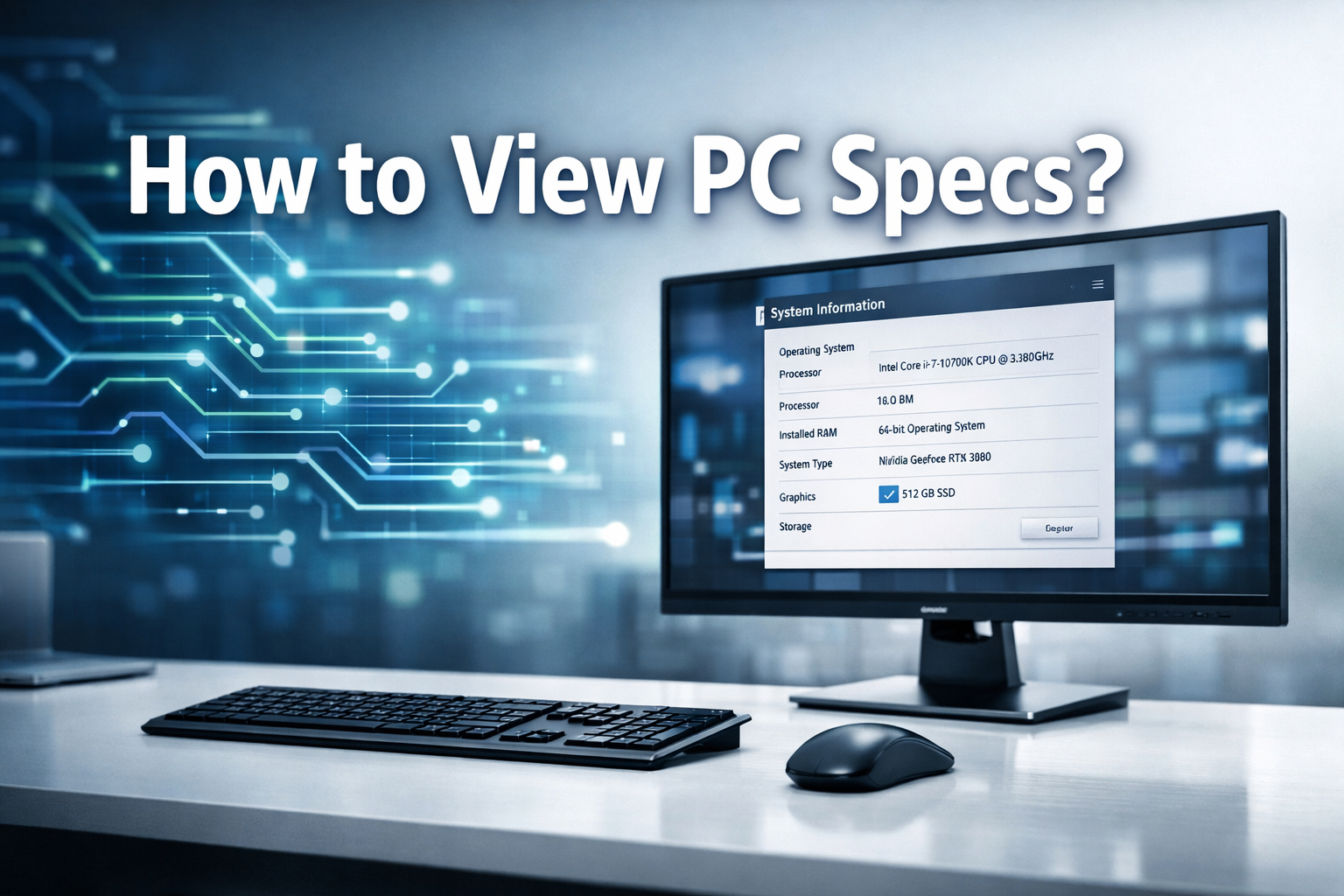

In an increasingly digital world, understanding your computer’s specifications (PC specs) is more crucial than ever. Whether you’re a gamer, a creative professional, a student, or simply a casual user, knowing how to view PC specs empowers you to make informed decisions about upgrades, software compatibility, troubleshooting, and even selling your device. This comprehensive guide for 2026 will demystify the process, walking you through various methods to access this vital information. From built-in Windows tools to third-party applications and even physical inspection, you’ll learn exactly how to view PC specs quickly and efficiently.
Key Takeaways
- Multiple Methods Available: There are several ways to check your PC specs, ranging from quick built-in Windows tools to detailed third-party software and even physical inspection.
- Essential Information: Key specifications include CPU, RAM, GPU, storage (HDD/SSD), and operating system version.
- Why It Matters: Knowing your specs is vital for game compatibility, software requirements, troubleshooting, upgrading hardware, and assessing resale value.
- Simple Steps for Windows: The ‘About’ section in Settings, Task Manager, and DirectX Diagnostic Tool are the primary built-in methods for Windows users.
- Advanced Tools for Detail: Third-party applications provide more in-depth data about every component of your system.
Why Understanding Your PC Specifications is Critical in 2026
Before diving into the “how-to,” let’s briefly touch upon why knowing your computer’s specifications is so important. In 2026, technology continues to advance at a rapid pace, with new software, games, and applications demanding more from your hardware.
Here’s why you need to know your PC specs:
- Software Compatibility: Many applications, especially professional design software, video editors, and advanced games, have minimum system requirements. Knowing your specs ensures you can run the software smoothly without performance issues or crashes.
- Gaming Performance: For gamers, understanding your CPU, GPU, and RAM is paramount to determining if your system can handle the latest titles at desired frame rates and graphical settings.
- Upgrading Decisions: If you’re looking to boost your computer’s performance, knowing your current components helps you choose compatible and effective upgrades, such as more RAM, a faster SSD, or a new graphics card.
- Troubleshooting: When your computer isn’t performing as expected, system information can be the first step in diagnosing issues, such as identifying a bottleneck or confirming sufficient resources.
- Resale Value: If you plan to sell your computer, providing accurate specifications helps potential buyers understand its capabilities and determines a fair market price.
- Comparing Systems: When buying a new PC, understanding specs allows you to compare different models and ensure you’re getting the best value for your money.
- Driver Updates: Keeping track of your hardware allows you to find and install the correct drivers, which are crucial for optimal performance and stability.
Ultimately, knowing how to view PC specs is a foundational skill for any computer user in 2026.
Basic Methods to View PC Specs on Windows
Windows operating systems offer several straightforward, built-in methods to quickly check your PC’s fundamental specifications. These methods are excellent for getting a general overview without needing to install any extra software.
1. Using the ‘About’ Section in Windows Settings
This is arguably the easiest and most common way to get a quick summary of your PC’s core specifications. It’s particularly useful for identifying your processor, installed RAM, and the edition of Windows you’re running.
Steps:
- Open Settings: Click on the Start button (usually the Windows logo in the bottom-left corner) and then click on the Settings icon (a gear shape ⚙️). Alternatively, you can press Windows key + I.
- Navigate to System: In the Settings window, click on “System.”
- Go to About: In the left-hand menu, scroll down and click on “About.”
What you’ll find here:
- Device specifications: This section lists your processor (CPU), installed RAM, device ID, product ID, and system type (e.g., 64-bit operating system).
- Windows specifications: Here you’ll see your Windows Edition (e.g., Windows 11 Home, Windows 11 Pro), version, installation date, and OS build.
“Understanding your core PC specifications through Windows Settings is the first step towards informed computing decisions.”
2. Utilizing the System Information Tool (msinfo32)
The System Information tool provides a more detailed, yet still user-friendly, overview of your hardware and software environment. It consolidates a vast amount of data in one place.
Steps:
- Open Run Dialog: Press Windows key + R to open the Run dialog box.
- Type `msinfo32`: In the Run box, type
msinfo32and press Enter or click OK.
What you’ll find here:
The System Information window presents a tree-like structure on the left, allowing you to browse different categories.
- System Summary: This is the default view and shows details like OS name, version, system manufacturer, system model, processor, BIOS version/date, total physical memory (RAM), and virtual memory.
- Hardware Resources: Provides insights into conflicts/sharing, DMA, forced hardware, I/O, and IRQs. (More advanced users).
- Components: Offers detailed information about specific hardware components, including:
- Display: Your graphics card(s) and monitor information.
- Sound Device: Audio hardware details.
- Storage: Information about your drives (local disks, CD-ROM).
- Network: Details about your network adapters.
- Software Environment: Lists running tasks, startup programs, drivers, and services.
This tool is incredibly powerful for a deeper dive into your system without resorting to third-party software.
3. Checking with Task Manager
While primarily known for managing running applications and processes, the Windows Task Manager also provides a live overview of your system’s performance and core hardware.
Steps:
- Open Task Manager: Press Ctrl + Shift + Esc or right-click on the Taskbar and select “Task Manager.”
- Go to Performance Tab: If the Task Manager opens in a simplified view, click “More details.” Then, click on the “Performance” tab.
What you’ll find here:
The Performance tab offers real-time graphs and static information about your key hardware components:
- CPU: Shows the processor model, clock speed, number of cores, logical processors, and current utilization.
- Memory: Displays total RAM, current usage, speed, and how many slots are used.
- Disk: Information about your storage drives (HDD/SSD), including model name and current activity.
- GPU: Shows your graphics card(s) model, dedicated memory, and current utilization.
This method is excellent for understanding not just what components you have, but also how well they are performing.
4. Using the DirectX Diagnostic Tool (DxDiag)
The DirectX Diagnostic Tool is invaluable for gamers and anyone needing specific information about their graphics and sound hardware, as well as the DirectX version.
Steps:
- Open Run Dialog: Press Windows key + R.
- Type `dxdiag`: In the Run box, type
dxdiagand press Enter or click OK. - Approve Prompt: If prompted, click “Yes” to allow the tool to check if your drivers are digitally signed.
What you’ll find here:
DxDiag opens with several tabs:
- System Tab: Provides general information about your operating system, computer manufacturer, system model, BIOS, processor, memory, and DirectX version. This is similar to the System Information tool but often includes slightly different details.
- Display Tab(s): Crucially, this tab shows detailed information about your graphics card(s), including the manufacturer, chip type, DAC type, total display memory, display mode, and driver details. If you have multiple GPUs (e.g., integrated and dedicated), you’ll see separate tabs for each.
- Sound Tab(s): Details about your audio devices and drivers.
- Input Tab: Lists connected input devices like keyboards and mice.
DxDiag is particularly useful when troubleshooting game performance issues or verifying graphics driver installations.
5. Utilizing the Command Prompt (CMD) or PowerShell
For those who prefer text-based interfaces or need to script information gathering, Command Prompt and PowerShell offer powerful ways to extract PC specs. This method can be particularly useful for IT professionals or advanced users who need to quickly pull specific data.
Steps for Command Prompt:
- Open Command Prompt: Press Windows key + R, type
cmd, and press Enter. - Type `systeminfo`: At the command prompt, type
systeminfoand press Enter.
What you’ll find here:
The systeminfo command will display a comprehensive list of system properties, including:
- OS Name, Version, Manufacturer
- System Model and Type
- Processor(s)
- Total Physical Memory (RAM)
- Network Adapter(s) details
- BIOS Version
It presents a lot of data, which might require scrolling to view everything.
Steps for PowerShell:
PowerShell offers even more granular control and object-oriented output.
- Open PowerShell:

 By
By
 By
By
 By
By