
Navigating the intricate world of digital files can often feel like peering into a labyrinth, especially when you need to access specific components like app icons from your Android device on a larger screen. For developers, designers, or even curious users, understanding “how to view Android app icon files on PC” is a crucial skill. This guide wil
This discussion overlaps with view iphone files comprehensive, especially for readers comparing view android app with similar issues.
l demystify the process, offering comprehensive methods to extract, locate, and display these vital graphical assets directly on your desktop, enhancing your workflow and creative potential in 2026.
Key Takeaways
- Direct Access: Connect your Android device via USB and browse its internal storage to find app-related folders.
- APK Extraction: Use specialized tools or change file extensions to unzip APK files and access their contained resources, including icons.
- Emulator Insight: Android emulators provide a simulated environment where app icons are rendered, and their source files can often be located.
- Developer Tools: Android Studio offers a robust environment to inspect app resources, making it ideal for developers.
- Third-Party Viewers: Dedicated file explorers and image viewers on PC can render various icon formats efficiently.
Understanding Android App Icon Files
Before diving into how to view Android app icon files on PC, it is essential to understand what these files are and where they reside. Android applications are typically distributed as APK (Android Package Kit) files, which are essentially archives containing all the elements an app needs to install correctly on a device. Within an APK, you’ll find various resources, including layouts, strings, media, and, of course, app icons [1].
These icons are not just single images; they often exist in multiple sizes and resolutions to ensure they look crisp on diverse Android devices, from small phone screens to large tablets. They can be found in formats like:
- PNG (Portable Network Graphics): The most common format for app icons, supporting transparency and various resolutions.
- WebP: A more modern image format offering superior compression and quality compared to PNG, often used for smaller file sizes.
- XML (Extensible Markup Language): Used for “adaptive icons,” introduced with Android 8.0 Oreo. These icons consist of a foreground and background layer, allowing for dynamic shapes and visual effects depending on the device’s launcher. They are not single image files but rather definitions that Android renders into an icon.
Where Android App Icons Live
On your Android device, app icons are generally embedded within the installed application’s data. They aren’t usually stored as standalone, easily accessible image files in a common “Icons” folder like you might expect on a PC. When you install an app from the Google Play Store, the APK is downloaded and then extracted onto your device. The icons, along with other resources, are placed within the app’s dedicated data directory, which is often protected and not directly user-accessible without root privileges.
This is why a direct “copy and paste” approach from your phone’s file system might not always yield the desired icon files. Instead, specific methods are required to extract them from the original APK or through developer tools.
Method 1: Connecting Your Android Device to Your PC
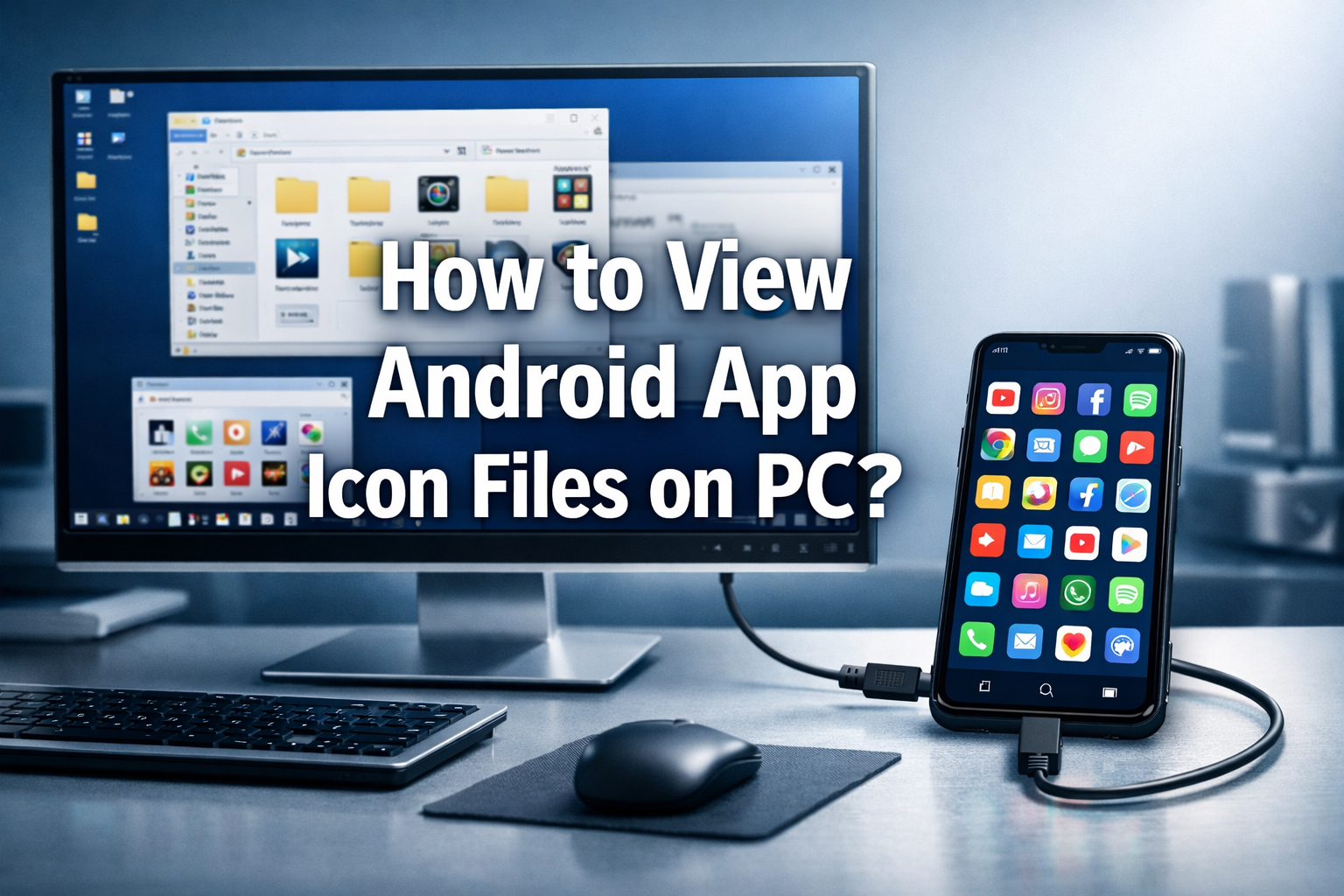
One of the most straightforward methods for how to view Android app icon files on PC involves directly connecting your Android device. While this doesn’t always provide immediate access to all app icons, it’s an excellent starting point for those wanting to view app-related images that might be stored in publicly accessible directories.
Step-by-Step Guide for USB Connection
- Connect Your Android Device: Use a USB cable to connect your Android phone or tablet to your PC. Ensure the cable is in good working order.
- Enable File Transfer Mode: On your Android device, a notification should appear asking what kind of USB connection you want. Select “File Transfer” or “MTP (Media Transfer Protocol)” mode. Avoid “Charging only” mode, as this will prevent your PC from seeing the device’s storage.
- Pro Tip: If the notification doesn’t appear, pull down the notification shade and tap on the USB connection notification.
- Access Device Storage on PC: Open “This PC” or “My Computer” on your Windows machine. Your Android device should appear under “Devices and drives” or “Portable Devices.” Double-click on it.
- Navigate Internal Storage: You will typically see “Internal Shared Storage” or “SD Card” if you have one. Double-click on “Internal Shared Storage.”
- Locate App-Related Folders: While you won’t find a single “App Icons” folder, some applications might save their larger, promotional icon assets or other related graphics in their dedicated folders within the
Android/datadirectory or specific app folders (e.g.,WhatsApp/Media). These are often accessible without rooting. - View and Copy: Once you find an image file (e.g., a PNG or JPG) that resembles an app icon, you can double-click to view it directly on your PC or copy it to your desktop for further use.
Important Note: This method is more likely to help you find custom icons or images saved by specific apps rather than the core launcher icons embedded within the APK. For those, you’ll need the methods described below.
Troubleshooting Connection Issues
Sometimes, your PC might not recognize your Android device. Here’s a quick checklist:
- Check USB Cable: Try a different cable. Faulty cables are a common culprit.
- Update Drivers: Ensure your PC’s USB drivers are up to date. You can usually do this through Device Manager. Learn more about how to do a system restore on your computer if driver issues lead to system instability.
- Restart Both Devices: A simple restart of both your PC and Android device can often resolve connectivity glitches.
- Developer Options: In some cases, enabling “USB debugging” in your Android’s Developer Options (accessible after tapping “Build number” seven times in “About phone”) can help. Remember to disable it after use for security reasons.
Method 2: Extracting Icons from APK Files
This is arguably the most effective way for how to view Android app icon files on PC directly from the source. Since APKs are essentially ZIP archives, you can use a file archiving tool to unpack them and access their contents.
What is an APK File?
An APK file (Android Package Kit) is the package file format used by the Android operating system for distribution and installation of mobile apps. Just like a .exe file on Windows or a .dmg file on macOS, an APK bundles an app’s code, resources, assets, certificates, and manifest file [2].
Steps to Extract Icons from an APK
- Obtain the APK File:
- From your device (if accessible): If you’ve downloaded an APK directly (sideloading) or have a file manager that allows you to copy APKs, transfer it to your PC.
- Using an APK Extractor app: Install an “APK Extractor” app from the Google Play Store on your Android device. These apps can extract the APK files of your installed applications and save them to your device’s internal storage, from where you can transfer them to your PC via USB.
- Download from a trusted source: For publicly available apps, you can sometimes download APKs from reputable websites like APKMirror, ensuring you trust the source to avoid malware.
- Rename the APK to a ZIP File:
- Locate the APK file on your PC.
- Right-click on the file and select “Rename.”
- Change the file extension from
.apkto.zip(e.g.,MyApp.apkbecomesMyApp.zip). - Confirm the change if a warning appears about file usability.
- Extract the ZIP File:
- Right-click on the newly renamed
.zipfile. - Select “Extract All…” (Windows) or use a dedicated archiving tool like 7-Zip or WinRAR.
- Choose a destination folder for the extracted contents.
- Right-click on the newly renamed
- Navigate to the Resources Folder:
- Once extracted, open the new folder.
- Inside, you’ll find several subfolders and files. Look for a folder named
res(short for resources). - Within
res, you’ll typically find folders likedrawable-mdpi,drawable-hdpi,drawable-xhdpi,drawable-xxhdpi,drawable-xxxhdpi,mipmap-anydpi-v26, etc. These folders contain the app icons at different resolutions and densities.
- Locate and View Icons:
- Browse through these
drawableormipmapfolders. - You will find PNG or WebP image files (e.g.,
ic_launcher.png,ic_launcher_round.png). - Double-click on these files to open them with your default image viewer on your PC.
- For adaptive icons, you might find XML files (
ic_launcher.xml,ic_launcher_round.xml) withinmipmap-anydpi-v26. These files define the adaptive icon and are not directly viewable as images without an Android rendering engine (like an emulator or Android Studio).
- Browse through these
| Folder Name | Screen Density | Typical Icon Size (px) | Description |
|---|---|---|---|
drawable-mdpi |
Medium (160 dpi) | 48×48 | Base density for standard screens. |
drawable-hdpi |
High (240 dpi) | 72×72 | For high-density screens. |
drawable-xhdpi |
Extra High (320 dpi) | 96×96 | For extra-high-density screens. |
drawable-xxhdpi |
Extra Extra High (480 dpi) | 144×144 | For very high-density screens. |
drawable-xxxhdpi |
Extra Extra Extra High (640 dpi) | 192×192 | For ultra-high-density screens, often launchers. |
mipmap-anydpi-v26 |
Adaptive Icons | N/A (XML definition) | Contains XML definitions for adaptive icons (Android 8.0+). |
“The
resdirectory is the heart of an Android app’s visual assets. Understanding its structure is key to accessing app icons and other graphical elements.”
Method 3: Using Android Emulators and Android Studio
For a more developer-centric approach, or if you need to inspect adaptive icons, Android emulators and Android Studio offer powerful capabilities for how to view Android app icon files on PC.
Leveraging Android Emulators
An Android emulator is a software that allows you to run a virtual Android device on your computer. Popular choices include Bluestacks, NoxPlayer, and the emulator built into Android Studio.
- Install an Emulator: Download and install your preferred Android emulator on your PC.
- Install the App: Install the Android app whose icon you want to view within the emulator. You can often do this by dragging and dropping an APK file onto the emulator window or by accessing the Google Play Store within the emulator.
- Locate App Files (Advanced):
- Some emulators provide built-in file explorers. Navigate through the emulator’s file system (often accessible via a “Tools” or “Settings” menu within the emulator itself).
- The app icon might be cached or stored in a way that allows you to copy it. This is less reliable than APK extraction, but worth exploring.
- For more advanced users, tools like
adb(Android Debug Bridge) can be used from your PC’s command line to access the emulator’s file system and pull files, similar to how you would with a physical device in developer mode. This involves connecting to the emulator as if it were a physical device and using commands likeadb pull /data/app/com.example.appname-1/base.apk C:pathtosaveto get the APK, then proceeding with Method 2. - Understanding what are the 4 parts of a computer system and how they interact can provide context for how emulators leverage your PC’s hardware.
Using Android Studio for Icon Inspection
Android Studio is the official integrated development environment (IDE) for Android app development. It provides an excellent environment to inspect app resources, including icons, especially useful for adaptive icons.
- Install Android Studio: Download and install Android Studio from the official Android Developers website.
- Open an Android Project (or create a new one): If you are a developer, open your existing project. If not, create a new empty project.
- Import the APK (if necessary): You can often use Android Studio’s APK Analyzer (Build > Analyze APK) to inspect the contents of an APK directly, similar to a ZIP extractor but with more detail. This will show you the
resfolder and its contents. - Navigate to
resfolder: In the “Project” window on the left, expandapp>src>main>res. - View Drawable/Mipmap Folders: Open the
drawableandmipmapfolders. Android Studio will display thumbnails of the PNG/WebP icon files, and you can double-click them to view them in a larger preview. - Inspect Adaptive Icons (XML): For adaptive icons (
ic_launcher.xmlinmipmap-anydpi-v26), Android Studio provides a powerful editor and preview. When you open the XML file, you’ll see the code defining the foreground and background layers. The design view or a dedicated “Preview” pane will render the adaptive icon as it would appear on a device, allowing you to see its dynamic shape.
Benefits of Android Studio:
- Comprehensive: Provides a complete view of all app resources.
- Adaptive Icon Preview: The best way to preview and understand adaptive icons.
- Developer-Friendly: Integrates seamlessly into a developer’s workflow.
- High Fidelity: Shows icons as they are meant to be rendered on an actual device.
Method 4: Utilizing Online APK Decompilers and Viewers
For users who prefer not to install software or are looking for a quick, one-off solution, online APK decompilers and viewers can be a convenient option for how to view Android app icon files on PC.
How Online Tools Work
These web-based services allow you to upload an APK file directly to their server. They then perform a similar extraction process to what you would do manually (renaming to .zip and extracting) and present the contents in a web browser interface.
Steps to Use Online APK Viewers
- Find a Reputable Online APK Viewer: Search for “online APK viewer,” “APK decompiler online,” or “view APK contents online.” Examples include APKCombo, APKLab, or similar services. Always exercise caution when uploading files to online services, especially for sensitive or proprietary applications.
- Upload Your APK File: On the chosen website, you will typically find an “Upload” button or a drag-and-drop area. Select your APK file from your PC and upload it.
- Browse the Contents: After the upload and processing are complete (which can take a few seconds to minutes, depending on the APK size and your internet speed), the website will display a file browser interface showing the APK’s structure.
- Navigate to
resand Download Icons:- Click through the folders, specifically looking for the
resdirectory. - Inside
res, locate thedrawableormipmapfolders. - Most online viewers will display thumbnails of the PNG/WebP icons. You can usually click on an icon to view it in full size and then right-click to “Save image as…” to download it to your PC.
- For XML-based adaptive icons, some advanced online tools might attempt to render them, but many will only show the XML code.
- Click through the folders, specifically looking for the
Pros of Online Tools:
- No Software Installation: Ideal for quick checks without cluttering your PC.
- Cross-Platform: Works on any operating system with a web browser.
- Simple Interface: Often user-friendly for non-technical users.
Cons of Online Tools:
- Security Concerns: Uploading proprietary or sensitive APKs is risky. Use only for publicly available or non-sensitive apps.
- Internet Dependency: Requires an active internet connection.
- Feature Limitations: May not fully render adaptive icons or provide advanced inspection capabilities.
- Privacy: Be mindful of the service’s privacy policy regarding uploaded files.
Practical Applications and Use Cases
Knowing how to view Android app icon files on PC opens up several practical possibilities for various users.
- Developers:
- Icon Verification: Ensure icons are correctly packaged and rendered across different densities.
- Resource Inspection: Analyze how other apps handle their icon resources for best practices.
- Debugging: Identify issues with icon display or missing assets.
- Designers:
- Asset Creation: Reference existing icons for style guides or design consistency.
- Competitor Analysis: Examine competitors’ app icons for design trends and inspiration.
- Portfolio Building: Extract icons to showcase design work (with proper attribution/permission).
- Content Creators/Reviewers:
- Screenshots and Reviews: Obtain high-quality app icons for use in articles, videos, or app reviews.
- Thumbnail Creation: Use actual app icons for video thumbnails or blog post imagery.
- Curious Users:
- Customization: Extract icons for personal use on custom launchers (e.g., Nova Launcher, Lawnchair) that allow icon pack creation.
- Learning: Satisfy curiosity about how apps are structured and what assets they contain.
Understanding how to access these files contributes to a broader understanding of a computer-based information system designed to handle data and its components.
Advanced Tips and Considerations
When working with Android app icon files, keep the following advanced tips and considerations in mind.
Adaptive Icons (Android 8.0+)
Adaptive icons are composed of two layers: a foreground and a background. These layers are defined in an XML file within the mipmap-anydpi-v26 folder. The Android system, specifically the device’s launcher, then generates a mask to display the icon in various shapes (circles, squares, squarcles, etc.) [3].
- Viewing: You cannot simply open an XML adaptive icon file and expect it to render as an image on your PC. You need a rendering engine. Android Studio is the best tool for this, as it will display the composite icon. Some advanced online APK viewers might offer limited rendering.
- Extraction: If you want the individual foreground and background images, you’ll need to parse the XML to find references to the
drawableresources, then locate those PNG/WebP files in their respectivedrawablefolders.
Vector Drawables
Some app icons might be implemented using Vector Drawables, which are XML files defining vector graphics. These offer scalability without loss of quality.
- Viewing: Android Studio can render Vector Drawables. On your PC, specialized vector graphics software (like Inkscape or Adobe Illustrator, with an appropriate SVG/XML plugin) might be able to display them, though direct support for Android’s specific Vector Drawable XML format varies.
- Conversion: For universal use, you might convert a Vector Drawable to a PNG at a desired resolution using Android Studio or an online tool.
Legality and Copyright
Always be mindful of copyright and intellectual property when extracting and using app icons.
- Personal Use: Extracting icons for personal use or learning purposes is generally acceptable.
- Commercial Use: Using extracted icons for commercial projects, redistribution, or modification without explicit permission from the app developer or copyright holder is illegal and unethical.
- Attribution: If you use an icon as a reference or in a review, always provide proper attribution.
Best Practices for Managing and Storing Icons on PC
Once you’ve successfully learned how to view Android app icon files on PC and extracted them, proper organization is crucial.
-
- Dedicated Folder: Create a specific folder on your PC, perhaps named “Android App Icons,” to store all extracted icons.
- Subfolders by App/Category: Within this main folder, create subfolders for each app or categorize them by type (e.g., “Social Media Icons,” “Utility Icons”).
- Resolution Tagging: When saving icons, consider adding the resolution to the filename (e.g.,
WhatsApp_icon_192x192.png) to keep track of different sizes. - Original Filenames: Retain original filenames (e.g.,
ic_launcher.png) as they often indicate the icon’s purpose within the app. - Backup: Regularly back up your icon collection, especially if you’re a designer or developer. Understanding what are the five main components of a computer system can help you choose the best storage solutions.
Conclusion
Understanding how to view Android app icon files on PC is a valuable skill, whether you’re a developer needing to inspect resources, a designer seeking inspiration, or a curious user looking to customize your digital experience. From directly connecting your Android device and extracting contents from APK files, to leveraging powerful tools like Android Studio and online viewers, there are multiple avenues to explore.
While each method has its advantages and limitations, the most reliable and comprehensive approach for most users involves obtaining the APK file and extracting its contents like a ZIP archive. For developers, Android Studio offers unmatched capabilities for detailed inspection, especially for modern adaptive icons. Always remember to respect intellectual property rights when working with these assets. By following the detailed steps outlined in this guide, you can confidently access and utilize Android app icon files on your PC in 2026.
Actionable Next Steps:
- Identify Your Need: Determine if you need a quick glance at a simple icon or a detailed inspection of an adaptive icon.
- Gather APKs: Use an APK extractor app on your phone or download APKs from trusted sources.
- Choose Your Tool:
- For simple images, rename APKs to
.zipand extract. - For adaptive icons or detailed inspection, consider installing Android Studio.
- For a quick check without software, try a reputable online APK viewer.
- For simple images, rename APKs to
- Organize: Create a structured folder system on your PC for all extracted icons.
- Respect Copyright: Use extracted icons responsibly and ethically.
References
- Google Developers. (n.d.). App resources overview. Retrieved from https://developer.android.com/guide/topics/resources/providing-resources
- Wikipedia. (2026). APK (file format). Retrieved from https://en.wikipedia.org/wiki/APK_(file_format)
- Google Developers. (n.d.). Adaptive icons. Retrieved from https://developer.android.com/guide/practices/ui_guidelines/adaptive-icons
<h

 By
By
 By
By
 By
By