
Key Takeaways
- Utilize Streamlabs’ built-in “Studio Mode” for a dual-pane full-screen preview.
- The “Pop-out Preview” feature allows a separate, resizable full-screen window for your stream content.
- Browser source full-screen options are crucial for dedicated alert or chat displays.
- Keyboard shortcuts like F11 or specific application keybinds can offer quick full-screen toggles.
- Optimizing your full-screen setup can significantly improve stream quality and creator efficiency.
Understanding Streamlabs Full Screen Options on PC
Streamlabs Desktop, a robust streaming software, offers several ways to maximize its interface or specific components to full screen. The method you choose will largely depend on what you intend to view in full screen. Are you looking to see your entire stream composition as your audience would? Do you want a large, dedicated display for your chat or alerts? Or perhaps you simply want to maximize the application window to reduce distractions? Each scenario has an optimal approach.
Before diving into specific methods, it’s essential to understand that “full screen” in the context of Streamlabs can mean different things. It might refer to the entire Streamlabs application filling your monitor, or it could mean a specific panel or preview within the application taking up a dedicated screen. Knowing these distinctions will help you apply the right technique for your needs in 2026.
Why Go Full Screen with Streamlabs?
- Enhanced Monitoring: A full-screen preview allows you to meticulously check your stream’s visual quality, overlay positioning, and overall aesthetic as your viewers see it [1].
- Reduced Distractions: Minimizing other applications and going full screen with Streamlabs can help you focus solely on your streaming task.
- Dedicated Displays: For multi-monitor setups, dedicating an entire screen to a full-screen preview or alerts can optimize your command center.
- Professional Presentation: Ensuring all elements are perfectly aligned and visible can elevate the professional look of your broadcast.
Method 1: Using Streamlabs’ Built-in Studio Mode for Full-Screen Preview
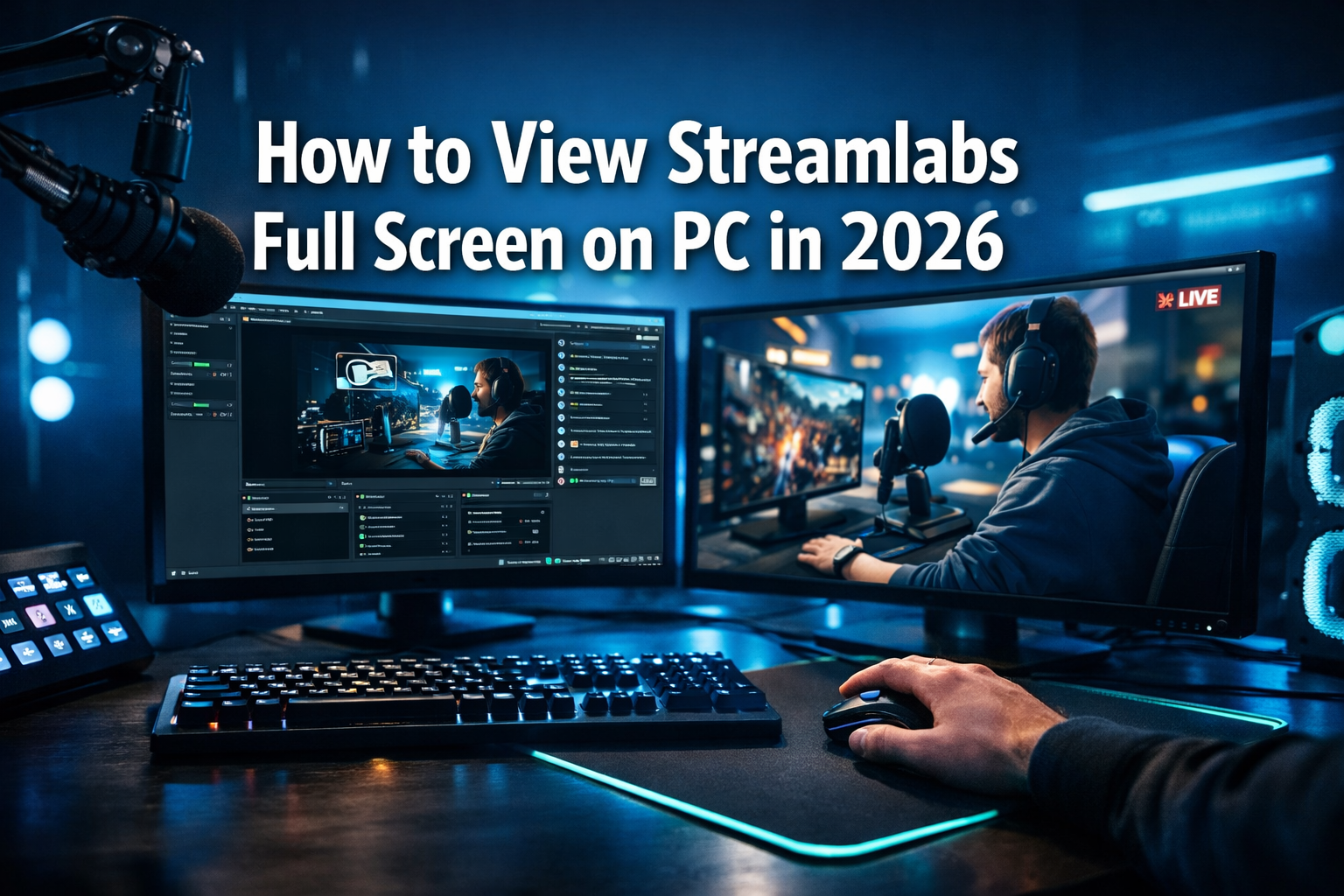
Studio Mode is a powerful feature within Streamlabs Desktop designed for advanced scene management and seamless transitions. It also offers an excellent way to **how to view your Streamlabs in full screen on PC** in a controlled environment. When active, Studio Mode splits your main preview window into two panes: “Program” (what your viewers see) and “Preview” (what you’re preparing).
Steps to Enable Full Screen with Studio Mode:
- Launch Streamlabs Desktop: Open the Streamlabs Desktop application on your PC.
- Locate Studio Mode Button: In the bottom-right corner of the Streamlabs interface, look for the “Studio Mode” button, often next to “Settings” and “Go Live.”
- Activate Studio Mode: Click the “Studio Mode” button. Your main preview window will now split into two.
- Maximize Preview or Program:
- Right-click on either the “Preview” or “Program” pane.
- Select “Fullscreen Projector (Source)” or “Fullscreen Projector (Monitor)” from the context menu.
- Choose the desired monitor if you have multiple displays.
This will project your selected pane (either your live stream or your prepped scene) onto an entire monitor, giving you a crystal-clear, full-screen view. This is incredibly useful for streamers who want to ensure every detail is perfect before their audience sees it.
Method 2: Using the Pop-out Preview for a Dedicated Full-Screen Window
Another excellent method for **how to view your Streamlabs in full screen on PC** is by using the “Pop-out Preview” feature. This allows you to detach the stream preview window from the main Streamlabs interface, creating a standalone, resizable window that can be moved to any screen and maximized.
How to Get a Pop-out Full-Screen Preview:
- Find the Pop-out Icon: Hover your mouse over the main preview window in Streamlabs Desktop. A series of icons will appear, including a “pop-out” icon (often looks like a square with an arrow pointing out of it).
- Click to Pop Out: Click the pop-out icon. Your stream preview will now appear in a new, separate window.
- Maximize the Pop-out Window:
- You can drag this new window to any monitor.
- Click the standard “Maximize” button in the top-right corner of the window (the square icon).
- Alternatively, you can manually drag the corners of the window to fill the entire screen.
This pop-out method is particularly flexible as it allows you to maintain the main Streamlabs interface on one monitor while dedicating an entire second (or third) monitor to a full-screen view of your stream. This is a common setup for professional streamers in 2026.
Method 3: Maximizing the Entire Streamlabs Application Window
Sometimes, you might simply want the entire Streamlabs Desktop application to fill your PC screen, including all its panels (scenes, sources, mixer, chat, etc.). This is the most straightforward way to **how to view your Streamlabs in full screen on PC** if your goal is to immerse yourself in the Streamlabs interface without other desktop distractions.
Steps to Maximize the Streamlabs Window:
- Click the Maximize Button: In the top-right corner of the Streamlabs Desktop window, click the square “Maximize” icon. This will expand the application to fill your primary monitor.
- Drag to Second Monitor: If you want it full screen on a secondary monitor, first drag the maximized window to that screen, then click maximize again if it resizes, or manually stretch it to fit.
- Using Keyboard Shortcut: Press the Windows key + Up Arrow (⬆️) to maximize the active Streamlabs window.
This method is basic but effective for a holistic full-screen view of your streaming control center. For tips on managing your computer system effectively, you might find guides on [how to do a system restore on your computer step-by-step guide](http://pcview.co.uk/how-to-do-a-system-restore-on-your-computer-step-by-step-guide/) or understanding [what are the 4 parts of a computer system core components](http://pcview.co.uk/what-are-the-4-parts-of-a-computer-system-core-components/) helpful in optimizing your PC.
Method 4: Full-Screening Specific Browser Sources or Docks
Streamlabs Desktop allows you to add custom browser docks or sources, which are essentially web pages embedded within the application. These are commonly used for chat, alerts, or stream dashboards. You can also make these full screen.
How to Full Screen Browser Sources:
- Identify Browser Source: In your “Sources” list, right-click on the specific “Browser Source” you want to full screen (e.g., your Twitch chat widget, a custom alert box).
- Interact with Browser Source: Depending on the browser source and its embedded content, there might be a full-screen button within the web content itself. For instance, if you’ve docked a YouTube video, its native full-screen button would work.
- Pop-out Docks: For custom browser docks (like the chat window), hover over the dock until you see the pop-out icon (similar to the preview pop-out). Click it to detach the dock into its own window, then maximize that window.
This method is crucial for streamers who dedicate an entire monitor to interactive elements like chat or a real-time event list. Knowing [what are the five main components of a computer system](http://pcview.co.uk/what-are-the-five-main-components-of-a-computer-system/) can also indirectly help in understanding how these various software components interact with your hardware for optimal performance.
Method 5: General PC Full-Screen Shortcuts and Tricks
Beyond Streamlabs’ specific features, your PC’s operating system (most likely Windows in 2026) offers general shortcuts that can force almost any application or window into full-screen mode. These can be particularly handy for a quick toggle.
Common Full-Screen Shortcuts:
-
F11 Key: This is a universal shortcut for many applications to enter or exit full-screen mode. While it might not always work directly within all Streamlabs panels, it’s worth trying if you’ve popped out a browser source or the preview window.
-
Alt + Enter: Primarily used in games and some media players, this combination can also toggle full-screen mode for certain applications.
-
Snap Assist (Windows): Drag a window to the top edge of your screen, and it will automatically maximize. Drag it to a side edge, and it will snap to half the screen. This is a quick way to manage window sizes without clicking the maximize button [2].
Understanding your operating system is key for efficient PC usage. If you’re ever curious about your current setup, learning [what operating system do I have on my computer how to check](http://pcview.co.uk/what-operating-system-do-i-have-on-my-computer-how-to-check/) can be a good starting point.
Optimizing Your Full-Screen Streamlabs Setup for Performance
While achieving full-screen views in Streamlabs is important for monitoring, it’s equally vital to ensure that this doesn’t negatively impact your PC’s performance or your stream’s quality. In 2026, efficient resource management is more important than ever for smooth broadcasts.
Tips for Performance Optimization:
- Close Unnecessary Applications: Running multiple applications, especially those demanding CPU or GPU resources, can impact Streamlabs’ performance. Close anything you don’t need during your stream.
- Monitor Resource Usage: Keep an eye on your CPU, GPU, and RAM usage through Task Manager. If any are consistently high, you may need to adjust Streamlabs settings (e.g., lower resolution, frame rate, or bit rate) or upgrade hardware.
- Hardware Acceleration: Ensure hardware acceleration is enabled in Streamlabs settings if your GPU supports it, as this offloads encoding tasks from your CPU.
- Update Drivers: Always keep your graphics card drivers and other relevant PC drivers updated to ensure optimal compatibility and performance.
- Dedicated Gaming Mode: Windows offers a “Game Mode” which optimizes your PC for gaming, potentially freeing up resources for Streamlabs.
For further reading on maintaining a healthy computer system, consider exploring topics like [how to get an operating system on a new computer installation guide](http://pcview.co.uk/how-to-get-an-operating-system-on-a-new-computer-installation-guide/) or even how to manage [a computer based information system designed to handle data](http://pcview.co.uk/a-computer-based-information-system-designed-to-handle-data/) for advanced users. Understanding these elements contributes to a more robust streaming environment.
Frequently Asked Questions About Streamlabs Full Screen on PC
To full screen a specific source, you generally need to right-click on the source in your “Sources” list. If it’s a browser source with embedded full-screen capabilities (like a video player), you might use its internal full-screen button. For a direct full-screen projection, you can right-click the main preview window, enter Studio Mode, and use the “Fullscreen Projector (Source)” option, then select the specific source you wish to project.
Yes, absolutely! This is a very common and recommended setup for PC streamers in 2026. You can achieve this by using the “Pop-out Preview” feature or by activating “Studio Mode” and then selecting “Fullscreen Projector (Monitor)” on your secondary display. This allows you to play your game on your primary monitor while monitoring your stream, chat, and alerts on your secondary screen in full-screen mode.
The F11 key is a universal full-screen toggle for many web browsers and some applications, but it doesn’t typically full screen the entire Streamlabs Desktop application directly. It’s more likely to work if you have a web-based component popped out (like a browser source or a detached dock). For the main Streamlabs application, you should use the maximize button or the “Fullscreen Projector” options within Studio Mode or the pop-out preview.
Generally, simply having Streamlabs Desktop in a full-screen window (maximized or via pop-out) should not significantly impact stream performance more than having it in a windowed mode. However, if you are running a “Fullscreen Projector” on a separate monitor, especially with high resolution, it will consume additional GPU resources to render that full-screen output. Ensure your PC meets recommended streaming specifications and monitor your resource usage to avoid any performance bottlenecks [3].
How to View Your Streamlabs in Full Screen on PC: A Step-by-Step Guide
Here’s a quick, actionable guide for the most common method to achieve a full-screen preview.
Launch Streamlabs Desktop
Open the Streamlabs Desktop application on your PC. Ensure it’s the latest version for the best features and performance in 2026.
Hover Over Preview Window
Move your mouse cursor over the main “Preview” window within Streamlabs. This is the large area showing your stream composition.
Click Pop-out Icon
A small row of icons will appear. Locate and click the “Pop-out Preview” icon, which typically looks like a square with an arrow pointing outwards. This detaches the preview into its own window.
Maximize Pop-out Window
Drag the newly popped-out preview window to your desired monitor. Then, click the standard “Maximize” button (the square icon) in the top-right corner of the window. Alternatively, right-click the pop-out window and select “Fullscreen Projector (Monitor)” for an even more immersive full-screen experience without borders.
Defined Terms
Studio Mode
A feature in Streamlabs Desktop that divides the preview window into two panes: ‘Preview’ (where you prepare your next scene) and ‘Program’ (what your audience currently sees). This allows for seamless transitions and precise adjustments before content goes live.
Pop-out Preview
A Streamlabs function that detaches the main stream preview into a separate, independent window. This window can be resized, moved across multiple monitors, and maximized to full screen, offering a dedicated view of the live stream content.
Browser Source
A Streamlabs source type that embeds a web page directly into your stream. This is commonly used for displaying chat widgets, alerts, donation trackers, or custom overlays from web-based services.
Fullscreen Projector
An advanced full-screen option available in Streamlabs (especially through Studio Mode or by right-clicking the pop-out preview) that projects the selected content (either the entire program or a specific source) onto an entire monitor without any window borders or title bars, providing a true immersive full-screen experience.
Conclusion: Master Your Streamlabs Full-Screen Experience in 2026
Mastering **how to view your Streamlabs in full screen on PC** is more than just a convenience; it’s a strategic move for any serious streamer in 2026. By utilizing Streamlabs’ native Studio Mode, the versatile Pop-out Preview, or simply maximizing the application window, you gain better control, enhanced monitoring capabilities, and a more professional streaming environment. For dedicated applications like chat or alerts, leveraging browser source full-screen options ensures every piece of your stream command center is optimized.
Remember that while achieving full screen is important, maintaining peak PC performance is equally critical. Always monitor your system resources, keep drivers updated, and close unnecessary background applications to ensure your full-screen Streamlabs setup runs smoothly and your stream quality remains high. Experiment with these methods to find the perfect configuration that suits your unique setup and streaming style.
Actionable Next Steps:
- Experiment: Try each full-screen method (Studio Mode, Pop-out Preview, Maximize Window) to see which best fits your workflow and monitor setup.
- Optimize: Check your Streamlabs settings for performance enhancements like hardware acceleration.
- Multi-Monitor Setup: If you have multiple screens, practice dragging and maximizing different Streamlabs components across them to create your ideal streaming dashboard.
- Test Live: Before a major broadcast, do a test stream to ensure your chosen full-screen setup doesn’t negatively impact performance or stream quality.
References
- [1] Streamlabs. (n.d.). Studio Mode in Streamlabs Desktop. Retrieved from [Streamlabs Help Center](https://streamlabs.com/content-hub/post/what-is-studio-mode-in-streamlabs-desktop) (accessed February 15, 2026).
- [2] Microsoft Support. (n.d.). Snap your windows. Retrieved from [Microsoft Support](https://support.microsoft.com/en-us/windows/snap-your-windows-8d4de92a-3677-2f22-2977-85ae275039e0) (accessed February 15, 2026).
- [3] NVIDIA. (n.d.). Optimal Settings for Streaming with NVIDIA GPUs. Retrieved from [NVIDIA Support](https://www.nvidia.com/en-us/geforce/guides/streaming-guide/) (accessed February 15, 2026).

 By
By
 By
By
 By
By