
Have you ever found yourself needing to access photos, videos, documents, or other critical data from your iPhone on your Windows PC or Mac, only to be met with frustrating limitations? Many iPhone users grapple with the challenge of seamlessly transferring and managing their device’s files on a desktop computer. Whether you’re a content creator needing to quickly transfer large video files, a professional archiving important documents, or simply trying to free up space on your phone, understanding how to view iPhone files on PC is an essential skill in 2026. This comprehensive guide will walk you through various reliable methods, from official Apple tools to versatile third-party solutions and cloud services, ensuring you can access your iPhone data with ease and efficiency.
Key Takeaways
- Direct USB Connection: For basic access to photos and videos, Windows File Explorer (DCIM folder) or Mac’s Photos app often work directly after trusting the computer.
- Official Apple Tools: iTunes (Windows) or Finder (Mac) are essential for syncing, backups, and managing specific file types like music and apps.
- Cloud Services are Key: iCloud, Google Drive, and Dropbox offer excellent wireless solutions for syncing and viewing a wide range of files across devices.
- Third-Party Software: For comprehensive file management, including app data, messages, and more detailed browsing, specialized third-party tools provide enhanced control.
- Security First: Always ensure you download software from reputable sources and understand privacy settings when connecting your iPhone to a PC.
Understanding iPhone File Management
Apple’s ecosystem is known for its robust security and integrated user experience, which often means a more controlled approach to file access compared to Android devices. Unlike Android, iPhones do not expose a traditional file system directly to your computer when connected. This means you can’t simply plug in your iPhone and browse every single folder like you would a USB drive. Instead, access is typically limited to specific file types or requires specific software.
Readers exploring view iphone files often end up considering view android app icon as part of the same topic.
“Apple’s design philosophy prioritizes user privacy and system integrity, which dictates how files are managed and accessed. Understanding this fundamental difference is the first step in successfully viewing your iPhone files on a PC.”
In 2026, while the core principles remain, software advancements and cloud integrations have made the process significantly smoother. We’ll explore these methods, ensuring you have the knowledge to effectively manage your iPhone content.
Method 1: Direct USB Connection (Windows PC)
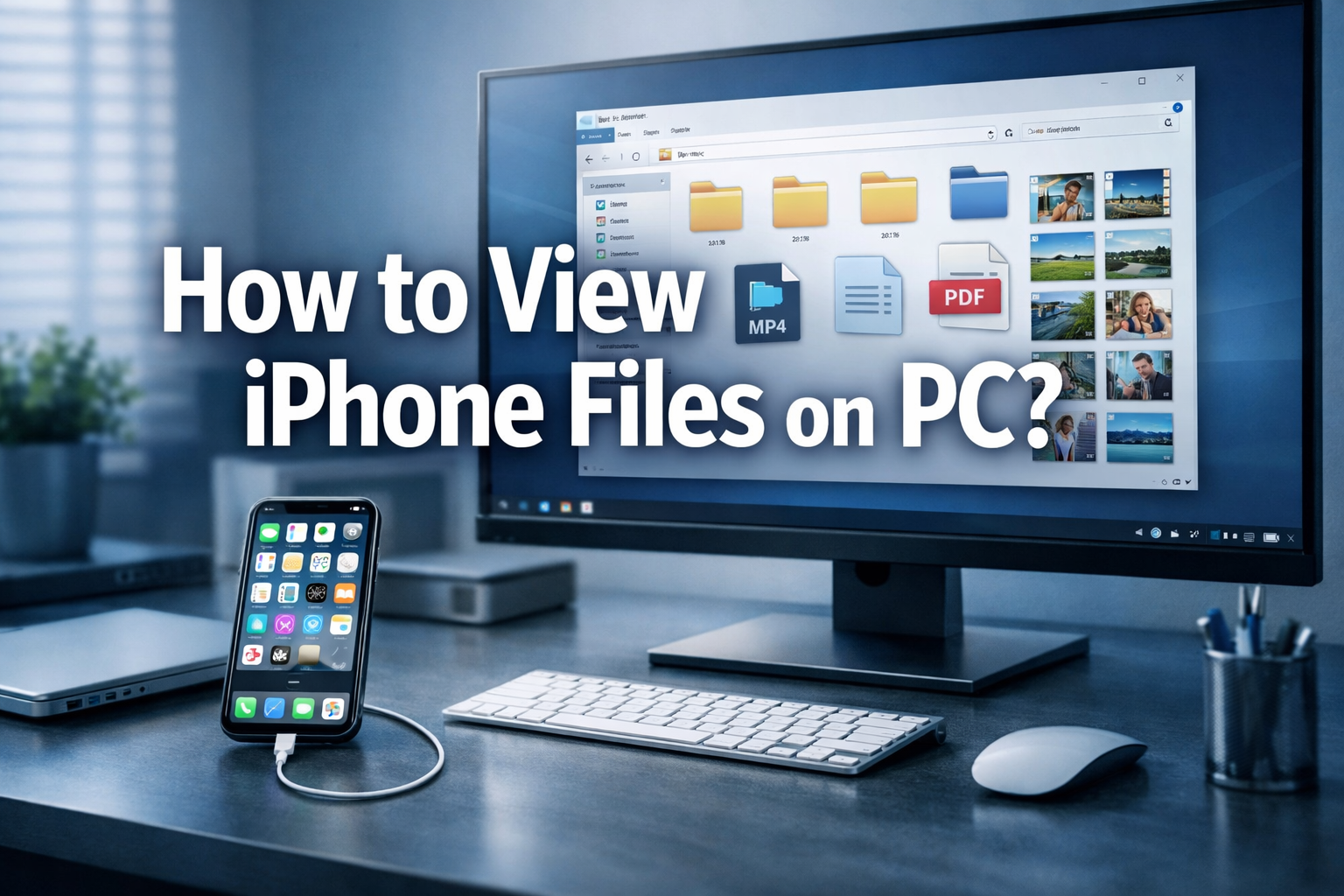
For Windows users, the simplest way to view specific iPhone files on PC is often through a direct USB connection. This method primarily allows access to photos and videos stored in your camera roll.
Step-by-Step Guide: How to view iPhone files on PC via USB (Windows)
-
Connect Your iPhone to Your PC: Use a compatible USB cable (Lightning or USB-C, depending on your iPhone model). Connect one end to your iPhone and the other to an available USB port on your Windows PC.
-
Unlock and Trust Your Device: Unlock your iPhone. You’ll likely see a prompt asking “Trust This Computer?” on your iPhone screen. Tap “Trust” and enter your passcode if required. This is a crucial security step that allows your PC to access your iPhone’s data.
-
Open File Explorer: On your PC, open File Explorer (you can press Windows Key + E or click the folder icon on your taskbar). In the left-hand pane, look for ‘This PC’ or ‘Computer’.
-
Locate Your iPhone: Under ‘Devices and drives’ or ‘Portable Devices’, you should see your iPhone listed, often labeled as “Apple iPhone” or by your device’s name. Double-click it.
-
Access the DCIM Folder: Inside your iPhone’s directory, you’ll typically find a folder named “Internal Storage.” Double-click it, then open the “DCIM” folder. This is where your iPhone stores all its photos and videos [1].
-
View and Copy Files: Within the DCIM folder, you’ll see several subfolders (e.g., 100APPLE, 101APPLE), each containing groups of your photos and videos. You can browse these files, copy them to your PC, or drag and drop them to other folders. Learn more about [what constitutes a computer-based information system](http://pcview.co.uk/a-computer-based-information-system-designed-to-handle-data/) for more context on device interactions.
Limitations: This method is excellent for media files but does not provide access to other types of data like contacts, messages, app data, or music that isn’t part of your camera roll.
Method 2: Using Official Apple Software (iTunes/Finder)
Apple’s official software provides a more integrated approach to managing your iPhone files, especially for syncing music, videos, apps, and creating backups.
iTunes for Windows: How to view iPhone files on PC
For Windows users, iTunes remains the primary official tool for managing your iPhone. While its role has evolved, it’s still crucial for certain tasks.
-
Install iTunes: If you don’t have it, download and install the latest version of iTunes from the Microsoft Store or Apple’s official website. This ensures compatibility with iOS devices in 2026.
-
Connect Your iPhone: Connect your iPhone to your PC using a USB cable. Unlock your iPhone and tap “Trust This Computer” if prompted.
-
Select Your Device: Open iTunes. Once your iPhone is recognized, a small iPhone icon will appear in the top-left corner of the iTunes window. Click on it.
-
Browse Device Information: You’ll land on the Summary tab, which shows device details, iOS version, and backup options. From the sidebar, you can navigate to different sections:
- Music/Movies/TV Shows: Sync content from your iTunes library to your iPhone. You can view what’s on your device, but not directly browse its internal storage like File Explorer.
- Photos: Sync photos from a specific folder on your PC to your iPhone. You cannot use iTunes to transfer photos from your iPhone to PC directly; for that, use File Explorer or iCloud.
- Files Sharing: Some apps allow you to transfer documents between your iPhone and PC using this feature. Select an app, and you’ll see documents associated with it.
-
Backups: iTunes is excellent for creating local backups of your iPhone, which can be invaluable for data recovery. While you can’t “view” the contents of a backup directly, you can restore your iPhone from it if needed. Understanding [how to do a system restore on your computer](http://pcview.co.uk/how-to-do-a-system-restore-on-your-computer-step-by-step-guide/) is a similar concept for PC data.
Finder for Mac: How to view iPhone files on PC (Mac)
Since macOS Catalina, iTunes has been replaced by Finder for device management, providing a more streamlined experience on Mac.
-
Connect Your iPhone: Connect your iPhone to your Mac using a USB cable. Unlock your iPhone and tap “Trust This Computer” if prompted.
-
Open Finder: Finder will automatically recognize your device. Your iPhone will appear in the sidebar of any Finder window, under ‘Locations’. Click on it.
-
Browse and Sync: Similar to iTunes, Finder offers various tabs to manage your iPhone:
- General: Provides device information and backup options.
- Music/Movies/TV Shows/Podcasts/Books/Audiobooks: Sync these media types between your Mac and iPhone.
- Files: This tab is particularly useful as it allows you to access files stored within compatible apps on your iPhone. You can drag and drop files directly between your Mac and these app folders.
- Photos: Similar to iTunes, this is for syncing photos from your Mac to your iPhone. For transferring photos *from* your iPhone to Mac, use the Photos app on your Mac.
-
Photos App on Mac: For managing iPhone photos and videos on a Mac, the built-in Photos app is the dedicated solution. Connect your iPhone, open Photos, and your device should appear under ‘Devices’ in the sidebar, allowing you to import and view your media.
Method 3: Cloud Storage Services for iPhone File Viewing
Cloud services offer the most flexible and often wireless way to view and manage iPhone files on your PC from anywhere in 2026. This method is highly recommended for cross-device accessibility.
iCloud: Apple’s Native Cloud Solution
iCloud is Apple’s integrated cloud service, syncing photos, documents, contacts, and more across your Apple devices and making them accessible on a PC.
-
Enable iCloud Services on iPhone: Go to Settings > [Your Name] > iCloud on your iPhone. Ensure that ‘iCloud Photos’, ‘iCloud Drive’, and any other services you wish to sync are toggled ON.
-
Access on Windows PC (iCloud for Windows):
- Download and install ‘iCloud for Windows’ from the Microsoft Store or Apple’s website.
- Sign in with your Apple ID.
- Select the features you want to enable (e.g., Photos, Mail, Contacts, Calendars, iCloud Drive).
- iCloud Photos will create a folder in File Explorer where your iPhone photos/videos will automatically sync. iCloud Drive will also appear as a folder, allowing you to browse and manage documents [2].
-
Access via Web Browser (iCloud.com):
- Open any web browser on your PC and go to www.icloud.com.
- Sign in with your Apple ID.
- You’ll see icons for various services like Photos, iCloud Drive, Notes, Reminders, and more. Click on ‘Photos’ to view your entire photo library, or ‘iCloud Drive’ to access your documents. You can download files directly to your PC from here. This is a universal method that works on any operating system. Learn about [how to get an operating system on a new computer](http://pcview.co.uk/how-to-get-an-operating-system-on-a-new-computer-installation-guide/) to set up your PC for optimal cloud use.
Other Popular Cloud Services (Google Drive, Dropbox, OneDrive)
For those not fully entrenched in the Apple ecosystem, or needing cross-platform compatibility, third-party cloud services are invaluable.
-
Install Apps on iPhone: Download and install the respective app (e.g., Google Drive, Dropbox, Microsoft OneDrive) on your iPhone from the App Store.
-
Upload Files from iPhone: Open the cloud app on your iPhone. You can manually upload photos, videos, documents, and other files directly from your iPhone to your cloud storage.
- Many apps offer automatic camera roll backup, ensuring your photos and videos are always synced.
-
Access on PC:
- Web Browser: Go to the service’s website (e.g., drive.google.com, dropbox.com, onedrive.live.com) on your PC and sign in. You can view, download, and manage your uploaded files.
- Desktop Client: Install the desktop application for Google Drive, Dropbox, or OneDrive on your PC. This creates a synced folder in your File Explorer (Windows) or Finder (Mac), providing seamless access to all your cloud files as if they were local.
Method 4: Third-Party iPhone File Manager Software
When native solutions or cloud services don’t offer the granular control you need, third-party iPhone file manager software can be a powerful alternative. These tools often provide a comprehensive view of your iPhone’s data, including files typically inaccessible through standard methods.
Why Use Third-Party Software?
Third-party file managers go beyond simple photo transfer or iTunes syncing. They can often:
- Access a wider range of file types, including app data, voice memos, contacts, messages, and more.
- Allow direct browsing of the iPhone’s file system (within safe limits).
- Offer features like creating selective backups, migrating data to a new device, and managing app installations.
- Provide a more user-friendly interface than iTunes for many tasks.
Popular Third-Party iPhone File Managers for PC
Here are some reputable options for how to view iPhone files on PC:
| Software Name | Key Features | Compatibility (2026) |
|---|---|---|
| iMazing | Comprehensive file management, app transfer, message/call history export, backups. | Windows, macOS |
| AnyTrans | Versatile transfer for photos, videos, music, messages, contacts; app management. | Windows, macOS |
| Dr.Fone – Phone Manager | Transfer, backup, restore, data recovery, screen mirroring; robust toolkit. | Windows, macOS |
| 3uTools | Flash & Jailbreak, data backup/restore, photo/video/music import/export. (Note: Primarily Windows, often associated with jailbreaking). | Windows |
How to Use Third-Party Software (General Steps)
-
Choose a Reputable Software: Research and select a well-reviewed third-party tool. Always download directly from the official developer’s website to avoid malware.
-
Install on PC: Follow the installation instructions for the chosen software on your Windows PC or Mac.
-
Connect iPhone: Connect your iPhone to your PC using a USB cable. Unlock your iPhone and tap “Trust This Computer” if prompted.
-
Launch Software & Browse: Open the third-party software. It should detect your iPhone and display its contents in a categorized, user-friendly interface. You can then navigate through photos, videos, music, contacts, messages, apps, and other files. Many of these tools provide an overview similar to [what are the five main components of a computer system](http://pcview.co.uk/what-are-the-five-main-components-of-a-computer-system/), giving you a complete picture of your device’s data structure.
-
Transfer or Manage: Use the software’s features to export files to your PC, import files to your iPhone, delete items, or create backups.
Important Security Note: Exercise caution when using third-party tools. Ensure they are from trusted developers to protect your data and device from potential security risks. Always back up your iPhone before using new software, especially if it promises advanced access.
Troubleshooting Common Issues
Even with the right methods, you might encounter issues when trying to view iPhone files on your PC. Here are some common problems and their solutions:
-
iPhone Not Recognized by PC:
- Check Cable/Port: Ensure your USB cable is not damaged and the USB port on your PC is working correctly. Try a different cable or port.
- “Trust This Computer”: Make sure you’ve tapped “Trust” on your iPhone when prompted.
- Unlock iPhone: Your iPhone must be unlocked for the PC to access its data.
- Restart Devices: Restart both your iPhone and your PC.
- Update Drivers: For Windows, sometimes Apple Mobile Device USB Driver might be outdated. Open Device Manager (search for it in the Start menu), find your iPhone under “Portable Devices” or “Universal Serial Bus controllers,” right-click, and select “Update driver.” Alternatively, reinstall iTunes, as it often installs necessary drivers.
-
Photos/Videos Not Appearing in DCIM Folder:
- iCloud Photos: If you use iCloud Photos and have “Optimize iPhone Storage” enabled, some original photos might only be stored in iCloud, not locally on your device [3]. Download them to your iPhone first or access them via iCloud for Windows/iCloud.com.
- Check Permissions: Ensure you’ve trusted the computer.
- Restart: A simple restart of both devices can often resolve temporary glitches.
-
iTunes/Finder Not Recognizing iPhone:
- Update Software: Ensure both your iTunes (Windows) or macOS (for Finder) and your iPhone’s iOS are updated to the latest versions in 2026.
- Antivirus/Firewall: Temporarily disable your antivirus or firewall to see if it’s blocking the connection.
- Apple Mobile Device Support: For Windows, ensure “Apple Mobile Device Support” is installed and running (check in Services via Task Manager).
-
Slow Transfer Speeds:
- Cable Quality: A faulty or non-original cable can significantly impact transfer speeds.
- USB Port: Use a USB 3.0 or higher port on your PC for faster transfers, if available.
- Large Files: Transferring many small files or very large video files will naturally take longer.
Best Practices for Managing iPhone Files on PC
To make the process of viewing and managing your iPhone files on your PC as smooth as possible, consider these best practices:
- Regular Backups: Consistently back up your iPhone to iCloud or your PC via iTunes/Finder. This acts as a safety net for all your data, regardless of how you access it [4].
- Keep Software Updated: Ensure your iOS, Windows/macOS, iTunes/Finder, and any third-party software are always updated to their latest versions for optimal compatibility and security in 2026.
- Use Original or Certified Cables: Invest in MFi-certified (Made for iPhone/iPad) cables to avoid connectivity issues and potential damage to your device.
- Organize Files: On your PC, create dedicated folders for iPhone photos, videos, and documents to keep them organized once transferred.
- Understand iCloud Storage: Be mindful of your iCloud storage plan. If you’re running out of space, consider upgrading or managing your data more aggressively.
- Secure Your PC: Since your PC will be accessing your iPhone’s data, ensure your computer is secure with up-to-date antivirus software and strong passwords.
- Know Your Operating System: Familiarize yourself with [what operating system you have on your computer](http://pcview.co.uk/what-operating-system-do-i-have-on-my-computer-how-to-check/) and its specific features for device connectivity.
Frequently Asked Questions (FAQ)
Can I view all iPhone files on PC without iTunes?
While iTunes/Finder is the official method for syncing, various third-party tools and cloud services allow you to access and manage iPhone files on your PC without needing iTunes/Finder directly, often providing more comprehensive file browsing capabilities.
How to view iPhone photos on PC if they don’t appear?
If photos aren’t appearing, ensure your iPhone is unlocked, trust the computer, check USB cable integrity, restart both devices, and verify your PC’s import settings. Sometimes, outdated drivers can also cause issues. Using iCloud Photos or a dedicated transfer app can be alternative solutions.
Is it safe to use third-party software to view iPhone files on PC?
The safety of third-party software depends on the developer. Always choose reputable software from trusted sources. Read reviews, check security certifications, and understand their privacy policy before installing. Be wary of free, untrusted applications that might contain malware.
What is the easiest way to view iPhone files on a PC wirelessly?
The easiest way to view iPhone files on a PC wirelessly is often through cloud services like iCloud, Google Drive, or Dropbox, which sync your files across devices. For media files, AirDrop (for Mac) or specialized apps like PhotoSync can also provide wireless transfer and viewing capabilities.
Conclusion
Navigating how to view iPhone files on PC doesn’t have to be a daunting task. As of 2026, a multitude of reliable options exists, catering to different needs and technical proficiencies. Whether you opt for the direct simplicity of a USB connection to access your camera roll, the comprehensive syncing capabilities of iTunes or Finder, the pervasive accessibility of cloud services like iCloud, or the advanced control offered by third-party file managers, the goal remains the same: seamless interaction between your iPhone and your computer.
The best method for you will depend on the type of files you need to access, your operating system (Windows or macOS), and your comfort level with different software. By understanding each approach, you empower yourself to efficiently manage your digital life, ensuring your precious memories and important documents are always within reach. Don’t let file transfer limitations hold you back – embrace the tools available and unlock the full potential of your iPhone data on your PC.
Actionable Next Steps:
- Identify Your Primary Need: Are you mainly transferring photos, managing documents, or needing a full backup? This will guide your choice of method.
- Start Simple: Begin with the direct USB connection for photos/videos on Windows, or use the Photos app on Mac.
- Leverage Cloud: Set up iCloud for Windows or your preferred cloud service (Google Drive, Dropbox) for effortless wireless syncing.
- Explore Third-Party: If you need advanced control, research reputable third-party file managers like iMazing or AnyTrans.
- Regularly Backup: Make it a habit to back up your iPhone to protect your data.


 By
By

 By
By
 By
By